
You can create a moiré pattern by drawing two sets of parallel lines on top of one another and rotating one set slightly. Their spacing produces broad bands that appear to move as the angle changes.
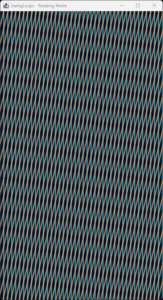
Rotating Moire
This SwingLoops example uses Java Swing and Java 2D to animate the effect. It requires no external libraries or image assets.
Source code
Save the following code as RotatingMoire.java:
package org.kodejava.swing.animation;

import java.awt.*;
import java.awt.geom.Line2D;
import javax.swing.*;

public class RotatingMoire extends JPanel {
    private static final int WIDTH = 450;
    private static final int HEIGHT = 800;
    private static final int EXTENT = 700;
    private static final int SPACING = 11;
    private static final double CYCLE = 12.0;

    private final Timer timer = new Timer(16, _ -> repaint());
    private long startedAt;
    private int mode = 3;

    public RotatingMoire() {
        setPreferredSize(new Dimension(WIDTH, HEIGHT));
        setBackground(new Color(9, 16, 29));

        for (int i = 1; i <= 3; i++) {
            final int selected = i;
            String action = "mode" + i;
            getInputMap(WHEN_IN_FOCUSED_WINDOW).put(
                    KeyStroke.getKeyStroke((char) ('0' + i)), action);
            getActionMap().put(action, new AbstractAction() {
                @Override
                public void actionPerformed(
                        java.awt.event.ActionEvent event) {
                    mode = selected;
                    repaint();
                }
            });
        }
    }

    @Override
    public void addNotify() {
        super.addNotify();
        startedAt = System.nanoTime();
        timer.start();
    }

    @Override
    public void removeNotify() {
        timer.stop();
        super.removeNotify();
    }

    private static void layer(Graphics2D parent,
                              double angle, Color color) {
        Graphics2D g = (Graphics2D) parent.create();
        try {
            g.rotate(angle);
            g.setColor(color);
            g.setStroke(new BasicStroke(3.5f));
            for (int x = -EXTENT; x <= EXTENT; x += SPACING) {
                g.draw(new Line2D.Double(
                        x, -EXTENT, x, EXTENT));
            }
        } finally {
            g.dispose();
        }
    }

    @Override
    protected void paintComponent(Graphics graphics) {
        super.paintComponent(graphics);
        Graphics2D g = (Graphics2D) graphics.create();

        try {
            g.setRenderingHint(RenderingHints.KEY_ANTIALIASING,
                    RenderingHints.VALUE_ANTIALIAS_ON);

            double scale = Math.min(
                    getWidth() / (double) WIDTH,
                    getHeight() / (double) HEIGHT);
            g.translate(getWidth() / 2.0, getHeight() / 2.0);
            g.scale(scale, scale);
            g.clipRect(-WIDTH / 2, -HEIGHT / 2, WIDTH, HEIGHT);

            double seconds = (System.nanoTime() - startedAt) / 1e9;
            double phase = 2 * Math.PI * (seconds % CYCLE) / CYCLE;
            double movingAngle = Math.toRadians(
                    10 + 7 * Math.sin(phase));

            layer(g, 0, new Color(62, 202, 226, 180));

            if (mode >= 2) {
                layer(g, mode == 2 ? Math.toRadians(10) : movingAngle,
                        new Color(244, 166, 123, 180));
            }
        } finally {
            g.dispose();
        }
    }

    static void main() {
        SwingUtilities.invokeLater(() -> {
            JFrame frame = new JFrame("SwingLoops - Rotating Moire");
            frame.setDefaultCloseOperation(JFrame.EXIT_ON_CLOSE);
            frame.setContentPane(new RotatingMoire());
            frame.pack();
            frame.setLocationRelativeTo(null);
            frame.setVisible(true);
        });
    }
}
Run the example
With a JDK 25 installed, open a terminal in the directory containing the source file:
javac RotatingMoire.java
java RotatingMoire
A desktop environment is required to display the Swing window. Close the window to stop the application.
Use these keys while the window is active:
| Key | View |
|---|---|
1 |
Show only the fixed cyan lines. |
2 |
Add a stationary second layer at 10 degrees. |
3 |
Animate the second layer. |
Draw the two layers
The layer() method draws equally spaced vertical lines. Each line has the same width and extends beyond the visible canvas.
Before drawing the second layer, the code rotates its copied graphics context:
g.rotate(angle);
Java 2D transforms all subsequent line coordinates. The method disposes the copied context afterward, so its rotation does not affect the other layer.
The broad bands are not separate shapes. They emerge where the two repeating line patterns overlap.
Why do broad bands appear?
When two line grids have similar orientations, their relative alignment changes slowly across the image. Some regions contain closely aligned lines; elsewhere, the lines separate and cross. This creates a larger repeating pattern over the fine line structure.
For two ideal grids with the same spacing s and an angle difference θ, the moiré spacing is approximately:
D = s / (2 × sin(θ / 2))
Angles in this formula are in radians. As the angle difference becomes smaller, the broad bands become farther apart.
For example, with a line spacing of 11 pixels and an angle difference of 10 degrees, the idealized band spacing is about 63 pixels. Stroke width, transparency, and the screen’s sampling affect the final appearance.
This example deliberately constructs the effect from two layers. It is different from unwanted aliasing caused solely by insufficient display resolution, although resizing can introduce additional sampling effects.
Animate the rotation
The rotating layer follows this angle:
double movingAngle = Math.toRadians(
        10 + 7 * Math.sin(phase));
Sine varies from −1 to 1, so the angle varies smoothly between 3 and 17 degrees. Keeping it away from zero avoids the extremely wide band spacing near perfect alignment.
The time phase completes one turn every 12 seconds:
double phase = 2 * Math.PI * (seconds % CYCLE) / CYCLE;
At the cycle boundary, the angle returns to its starting value with matching motion, allowing the animation to repeat smoothly.
Paint safely with Swing
A Swing timer requests repaints approximately every 16 milliseconds. Actual repaint frequency depends on the event queue and system performance.
The angle uses elapsed time rather than a frame counter, so delayed frames do not change the intended cycle duration. The interface, timer callbacks, and painting run on Swing’s event-dispatch thread.
The drawing is centered, scaled uniformly, and clipped to a logical 450 × 800 canvas. This preserves its proportions when the window is resized.
Customize the effect
Try changing one setting at a time:
| Setting | Effect |
|---|---|
SPACING |
Distance between lines; changes the scale of the moiré pattern. |
3.5f stroke width |
Changes how much each layer covers the background. |
10 in the angle calculation |
Average angle between layers. |
7 in the angle calculation |
Amount of angular variation. |
CYCLE |
Duration of one back-and-forth rotation. |
| Layer colors and alpha values | Change the contrast and overlap colors. |
Start by increasing SPACING from 11 to 15. The fine lines and the broad pattern will both become more widely spaced.
The complete source code above is free to copy and run. Explore the SwingLoops repository for more Java animation examples.