How do I create a neon hexagon vortex animation in Java Swing?

You can create a neon vortex in Java Swing by drawing nested hexagons with Graphics2D and changing their size, rotation, and color over time. Layering wide, transparent strokes behind each outline produces a soft glow without external libraries.
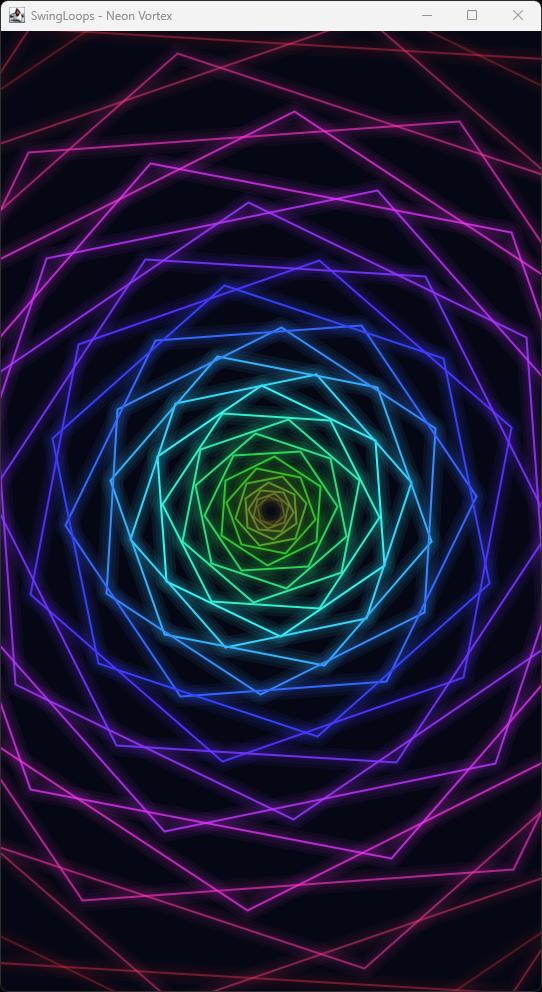
Neon Vortex

Neon Vortex

In this SwingLoops example, rainbow hexagons expand from a dark center to create a twisting tunnel. The animation follows an eight-second cycle and uses a portrait canvas suitable for recording a short video.

Source code

Save the following code as NeonVortex.java:

import javax.swing.*;
import java.awt.*;
import java.awt.geom.Path2D;

public class NeonVortex extends JPanel {
    private final long start = System.nanoTime();
    private final Timer timer = new Timer(16, e -> repaint());

    public NeonVortex() {
        setPreferredSize(new Dimension(540, 960));
        setBackground(new Color(5, 7, 20));
    }

    @Override
    public void addNotify() {
        super.addNotify();
        timer.start();
    }

    @Override
    public void removeNotify() {
        timer.stop();
        super.removeNotify();
    }

    @Override
    protected void paintComponent(Graphics graphics) {
        super.paintComponent(graphics);
        Graphics2D g = (Graphics2D) graphics.create();
        g.setRenderingHint(RenderingHints.KEY_ANTIALIASING,
                RenderingHints.VALUE_ANTIALIAS_ON);
        g.translate(getWidth() / 2.0, getHeight() / 2.0);
        double scale = Math.min(getWidth() / 540.0, getHeight() / 960.0);
        g.scale(scale, scale);
        // An eight-second cycle: positions and colors repeat together.
        double phase = ((System.nanoTime() - start) / 1e9 % 8.0) / 8.0;
        for (int i = 0; i < 32; i++) {
            double depth = (i / 32.0 + phase) % 1.0;
            double radius = 12 + 690 * depth * depth;
            double angle = depth * 4 * Math.PI + phase * 2 * Math.PI;
            float hue = (float) ((depth + phase) % 1.0);
            Color color = Color.getHSBColor(hue, 0.8f, 1f);
            float opacity = (float) Math.sin(Math.PI * depth);
            Shape ring = polygon(radius, angle);
            for (int glow = 3; glow >= 1; glow--) {
                g.setComposite(AlphaComposite.SrcOver.derive(opacity * 0.07f));
                g.setColor(color);
                g.setStroke(new BasicStroke(glow * 7f,
                        BasicStroke.CAP_ROUND, BasicStroke.JOIN_ROUND));
                g.draw(ring);
            }
            g.setComposite(AlphaComposite.SrcOver.derive(opacity));
            g.setColor(color);
            g.setStroke(new BasicStroke(2f));
            g.draw(ring);
        }
        g.dispose();
    }

    private static Shape polygon(double radius, double rotation) {
        Path2D path = new Path2D.Double();
        for (int vertex = 0; vertex < 6; vertex++) {
            double a = rotation + vertex * Math.PI / 3;
            double x = radius * Math.cos(a), y = radius * Math.sin(a);
            if (vertex == 0) path.moveTo(x, y);
            else path.lineTo(x, y);
        }
        path.closePath();
        return path;
    }

    public static void main(String[] args) {
        SwingUtilities.invokeLater(() -> {
            JFrame frame = new JFrame("SwingLoops - Neon Vortex");
            frame.setDefaultCloseOperation(JFrame.EXIT_ON_CLOSE);
            frame.setContentPane(new NeonVortex());
            frame.pack();
            frame.setLocationRelativeTo(null);
            frame.setVisible(true);
        });
    }
}

Run the example

You need a JDK and a desktop environment to run this Swing application. The source was compiled successfully with JDK 25; visual playback has not yet been verified.

Open a terminal in the directory containing NeonVortex.java, then compile and run it:

javac NeonVortex.java
java NeonVortex

The application opens a window with a preferred drawing area of 540 × 960 pixels. The animation continues until you close the window. If it does not fit your screen, reduce both preferred dimensions proportionally, for example to 405 × 720.

How does the animation work?

Refreshing the panel with a Swing Timer

A javax.swing.Timer requests a repaint approximately every 16 milliseconds:

private final Timer timer = new Timer(16, e -> repaint());

This targets roughly 60 updates per second, although actual timing depends on the system and event queue. The timer starts when the panel becomes displayable and stops when it is removed.

The animation uses elapsed time rather than a frame counter, so its cycle does not depend on receiving an exact number of timer events. SwingUtilities.invokeLater() creates the interface on Swing’s event-dispatch thread, where timer callbacks and painting also run.

Moving hexagons through the tunnel

The elapsed time is converted into a value from zero up to, but not including, one:

double phase = ((System.nanoTime() - start) / 1e9 % 8.0) / 8.0;

Each of the 32 hexagons receives a different position within the cycle:

double depth = (i / 32.0 + phase) % 1.0;
double radius = 12 + 690 * depth * depth;

As depth increases, the hexagon grows. Squaring depth makes growth slower near the center and faster toward the outside, suggesting motion toward the viewer. The modulo operation returns each hexagon to the center after it reaches the end of its cycle.

Drawing and rotating a hexagon

The polygon() method places six vertices around a circle. Each vertex is separated by 60 degrees, or Math.PI / 3 radians:

double a = rotation + vertex * Math.PI / 3;
double x = radius * Math.cos(a);
double y = radius * Math.sin(a);

A Path2D connects the vertices and closes the shape. The rotation combines the hexagon’s depth with the current animation phase:

double angle = depth * 4 * Math.PI + phase * 2 * Math.PI;

Different depths produce different orientations, while the phase rotates the tunnel over time.

Creating rainbow colors and a neon glow

Color.getHSBColor() converts a changing hue into a vivid RGB color. Saturation and brightness stay fixed while the hue moves around the color wheel.

For the glow, the application draws each hexagon three times using wide strokes with low opacity. A thin, brighter outline is drawn on top. This approximates a neon glow using ordinary strokes rather than a blur filter.

The opacity follows a sine curve:

float opacity = (float) Math.sin(Math.PI * depth);

Each hexagon fades in near the center, becomes brighter midway through its journey, and fades out near the outside. This also softens the moment when its depth wraps back to zero.

Preserving the aspect ratio

Before drawing, the code moves the coordinate origin to the panel’s center and applies a uniform scale based on the available width and height. Resizing the window therefore preserves the hexagons’ proportions instead of stretching them.

The drawing uses a copied Graphics2D context, which is disposed after painting so that its transforms and drawing settings do not affect other painting operations.

Customize the animation

Try changing one parameter at a time:

Parameter Effect
8.0 in the phase calculation Cycle duration in seconds; a larger value slows the animation. Change both occurrences together.
32 in the loop and depth calculation Number of hexagons; change both occurrences together.
690 in the radius calculation Maximum expansion distance.
depth * 4 * Math.PI Amount of twist across the tunnel.
glow * 7f Width of the glow strokes.
new Color(5, 7, 20) Background color.

The complete source code above is free to copy and run. No external libraries or image assets are required.

How do I write a simple analog clock using Java 2D?

Here is a simple Java code for an analog clock using Java 2D features in Swing.

Please adjust the code according to your needs. This code will create a new JFrame and continually update it every second with the current time.

package org.kodejava.swing;

import javax.swing.*;
import java.awt.*;
import java.util.Calendar;
import java.util.GregorianCalendar;

public class AnalogClock extends JPanel {

    public AnalogClock() {
        setPreferredSize(new Dimension(400, 300));
        setBackground(Color.WHITE);
        new Timer(1000, e -> repaint()).start();
    }

    @Override
    public void paintComponent(Graphics g) {
        super.paintComponent(g);
        Graphics2D g2d = (Graphics2D) g;
        g2d.setRenderingHint(RenderingHints.KEY_ANTIALIASING, RenderingHints.VALUE_ANTIALIAS_ON);

        int side = Math.min(getWidth(), getHeight());
        int centerX = getWidth() / 2;
        int centerY = getHeight() / 2;

        GregorianCalendar time = new GregorianCalendar();
        int second = time.get(Calendar.SECOND);
        int minute = time.get(Calendar.MINUTE);
        int hour = time.get(Calendar.HOUR_OF_DAY);

        drawHand(g2d, side/2 - 10, second / 60.0, 0.5f, Color.RED);
        drawHand(g2d, side/2 - 20, minute / 60.0, 2.0f, Color.BLUE);
        drawHand(g2d, side/2 - 40, hour / 12.0, 4.0f, Color.BLACK);

        // Draw clock numbers and circle
        drawClockFace(g2d, centerX, centerY, side/2 - 40);
    }

    private void drawHand(Graphics2D g2d, int length, double value, float stroke, Color color) {
        double angle = Math.PI * 2 * (value - 0.25);
        int endX = (int) (getWidth() / 2 + length * Math.cos(angle));
        int endY = (int) (getHeight() / 2 + length * Math.sin(angle));

        g2d.setColor(color);
        g2d.setStroke(new BasicStroke(stroke));
        g2d.drawLine(getWidth() / 2, getHeight() / 2, endX, endY);
    }

    // Added method to draw the clock face and numbers
    private void drawClockFace(Graphics2D g2d, int centerX, int centerY, int radius) {
        g2d.setStroke(new BasicStroke(2.0f));
        g2d.setColor(Color.BLACK);
        g2d.drawOval(centerX - radius, centerY - radius, 2 * radius, 2 * radius);

        for (int i = 1; i <= 12; i++) {
            double angle = Math.PI * 2 * (i / 12.0 - 0.25);
            int dx = centerX + (int) ((radius + 20) * Math.cos(angle));
            int dy = centerY + (int) ((radius + 20) * Math.sin(angle));

            g2d.drawString(Integer.toString(i), dx, dy);
        }
    }

    public static void main(String[] args) {
        JFrame frame = new JFrame("Analog Clock");
        frame.setDefaultCloseOperation(JFrame.EXIT_ON_CLOSE);
        frame.add(new AnalogClock());
        frame.pack();
        frame.setVisible(true);
    }
}

In this code, each “hand” of the clock is moved by calculating its angle according to the current time. The drawHand() method takes the length of the hand, the proportion of its rotation (for an hour hand, this would be the current hour divided by 12), the stroke width to draw with, and the color to draw, then calculates the end point of the hand line and draws it from the center of the clock.

The drawClockFace(), which draws a circle using the drawOval() method (because a circle is a type of oval), and adds numbers around the edge of the circle using the drawString() method. In both cases, the position of each element is calculated based on the sine and cosine of the angle that represents each hour on the clock face.

Analog Clock

Analog Clock

Note: Swing is an old but reliable technology that allows coding of GUI elements, however, it’s no longer actively developed. If you are developing a new project, consider using JavaFX as it is more modern and actively developed.

How do I draw a vertical text in Java 2D?

To draw a text / string vertically we need to do a transform on the Graphics2D object. First, create an instance of AffineTransform and set the rotation using the setToRotation() method. And then pass this transform object into g2.setTransform() method.

package org.kodejava.awt.geom;

import javax.swing.*;
import java.awt.*;
import java.awt.geom.AffineTransform;

public class DrawVerticalText extends JPanel {
    public static void main(String[] args) {
        JFrame frame = new JFrame();
        frame.setTitle("Draw Vertical Text Demo");
        frame.setDefaultCloseOperation(WindowConstants.EXIT_ON_CLOSE);
        frame.add(new DrawVerticalText());
        frame.pack();
        frame.setSize(420, 350);
        frame.setVisible(true);
    }

    @Override
    public void paint(Graphics g) {
        Graphics2D g2 = (Graphics2D) g;

        // Define rendering hint, font name, font style and font size
        g2.setRenderingHint(RenderingHints.KEY_ANTIALIASING, RenderingHints.VALUE_ANTIALIAS_ON);
        g2.setFont(new Font("Segoe Script", Font.BOLD, 22));
        g2.setColor(Color.RED);

        // Rotate 90 degree to make a vertical text
        AffineTransform at = new AffineTransform();
        at.setToRotation(Math.toRadians(90), 80, 100);
        g2.setTransform(at);
        g2.drawString("This is a vertical text", 10, 10);
    }
}

Run the snippet, and you’ll see the following screen:

Draw 2D Vertical Text

Draw 2D Vertical Text

How do I draw a string in Java 2D?

The code snippet below show you how to draw a string using Graphics2D. The drawString() method accept the string to be drawn and their x and y coordinate. Here you can also see how to set the antialiasing mode using the setRenderingHint() method.

package org.kodejava.awt.geom;

import javax.swing.*;
import java.awt.*;

public class DrawString extends JPanel {
    public static void main(String[] args) {
        JFrame frame = new JFrame();
        frame.setTitle("Draw String Demo");
        frame.setDefaultCloseOperation(WindowConstants.EXIT_ON_CLOSE);
        frame.add(new DrawString());
        frame.pack();
        frame.setSize(420, 300);
        frame.setVisible(true);
    }

    @Override
    public void paint(Graphics g) {
        Graphics2D g2 = (Graphics2D) g;

        // Define rendering hint, font name, font style and font size
        g2.setRenderingHint(RenderingHints.KEY_ANTIALIASING, RenderingHints.VALUE_ANTIALIAS_ON);
        g2.setFont(new Font("Segoe Script", Font.BOLD + Font.ITALIC, 40));
        g2.setPaint(Color.ORANGE);

        // Draw Hello World String
        g2.drawString("Hello World!", 50, 100);
    }
}

Run the snippet, and you’ll see the following screen:

Draw 2D String

Draw 2D String

How do I create a gradient paint in Java 2D?

To change the color of a graphics shape we can use the setPaint() method. For a simple coloring we can pass the color object into this method, such as Color.RED or Color.GREEN.

If you want to paint with a gradient paint you can use the GradientPaint class. This class provides a way to fill a shape with a linear color gradient pattern. To create a gradient color pattern you can pass the following parameter to the object constructor.

  • x1: x coordinate of the first specified point in user space
  • y1: y coordinate of the first specified point in user space
  • color1: color at the first specified point
  • x2: x coordinate of the second specified point in user space
  • y2: y coordinate of the second specified point in user space
  • color2: color at the second specified point
package org.kodejava.awt.geom;

import javax.swing.*;
import java.awt.*;
import java.awt.geom.Rectangle2D;

public class GradientPaintDemo extends JComponent {
    public static void main(String[] args) {
        JFrame frame = new JFrame("Gradient Paint Demo");
        frame.setDefaultCloseOperation(WindowConstants.EXIT_ON_CLOSE);
        frame.getContentPane().add(new GradientPaintDemo());
        frame.pack();
        frame.setSize(new Dimension(420, 350));
        frame.setVisible(true);
    }

    @Override
    public void paint(Graphics g) {
        Graphics2D g2 = (Graphics2D) g;

        GradientPaint blackToGray = new GradientPaint(50, 50, Color.BLACK,
                300, 100, Color.LIGHT_GRAY);
        g2.setPaint(blackToGray);
        g2.fill(new Rectangle2D.Double(50, 50, 300, 100));

        GradientPaint blueToBlack = new GradientPaint(0, 0, Color.BLUE,
                400, 400, Color.BLACK);
        g2.setPaint(blueToBlack);
        g2.fill(new Rectangle2D.Double(50, 160, 300, 100));
    }
}

This code snippet produce the following output:

2D Gradient Paint Demo

2D Gradient Paint Demo