How do I morph text with particles in Java Swing?

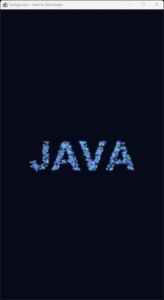
You can turn text into a particle animation by drawing each word into a transparent image and treating its visible pixels as destinations. In this example, 840 glowing dots form JAVA, change into SwingLoops, and return to the original cloud. Everything is drawn with Java Swing and Java 2D.
Particle Text Morph
Particle Text Morph

Source code

Save the following code as ParticleTextMorph.java:

import java.awt.*;
import java.awt.geom.Ellipse2D;
import java.awt.image.BufferedImage;
import java.util.ArrayList;
import java.util.Collections;
import java.util.List;
import java.util.Random;
import javax.swing.*;

public class ParticleTextMorph extends JPanel {
    private static final int WIDTH = 540, HEIGHT = 960, COUNT = 840;
    private static final double CYCLE = 12.0;

    private final Point[] cloud = new Point[COUNT];
    private final Point[] javaText = textPoints("JAVA", 132, 7);
    private final Point[] logoText = textPoints("SwingLoops", 90, 19);
    private final Color[] colors = new Color[COUNT];
    private final Timer timer = new Timer(16, _ -> repaint());
    private long start;

    public ParticleTextMorph() {
        setPreferredSize(new Dimension(WIDTH, HEIGHT));
        setBackground(new Color(7, 10, 24));
        Random random = new Random(42);
        for (int i = 0; i < COUNT; i++) {
            cloud[i] = new Point(
                    40 + random.nextInt(WIDTH - 80),
                    190 + random.nextInt(HEIGHT - 380));
            float hue = 0.47f + 0.25f * random.nextFloat();
            colors[i] = Color.getHSBColor(hue, 0.55f, 1.0f);
        }
    }

    private static Point[] textPoints(String text, int size, long seed) {
        BufferedImage mask = new BufferedImage(
                WIDTH, HEIGHT, BufferedImage.TYPE_INT_ARGB);
        Graphics2D g = mask.createGraphics();
        try {
            g.setRenderingHint(RenderingHints.KEY_TEXT_ANTIALIASING,
                    RenderingHints.VALUE_TEXT_ANTIALIAS_ON);
            Font font = new Font(Font.SANS_SERIF, Font.BOLD, size);
            while (font.getSize() > 1
                    && g.getFontMetrics(font).stringWidth(text) > WIDTH - 80) {
                font = font.deriveFont(font.getSize2D() - 1);
            }
            g.setFont(font);
            FontMetrics metrics = g.getFontMetrics();
            int x = (WIDTH - metrics.stringWidth(text)) / 2;
            int y = (HEIGHT + metrics.getAscent() - metrics.getDescent()) / 2;
            g.setColor(Color.WHITE);
            g.drawString(text, x, y);
        } finally {
            g.dispose();
        }

        List<Point> pixels = new ArrayList<>();
        for (int y = 0; y < HEIGHT; y += 2) {
            for (int x = 0; x < WIDTH; x += 2) {
                if ((mask.getRGB(x, y) >>> 24) > 180) {
                    pixels.add(new Point(x, y));
                }
            }
        }
        if (pixels.isEmpty()) {
            throw new IllegalArgumentException("No visible pixels for: " + text);
        }
        Collections.shuffle(pixels, new Random(seed));
        Point[] points = new Point[COUNT];
        for (int i = 0; i < COUNT; i++) {
            points[i] = pixels.get(i % pixels.size());
        }
        return points;
    }

    @Override
    public void addNotify() {
        super.addNotify();
        start = System.nanoTime();
        timer.start();
    }

    @Override
    public void removeNotify() {
        timer.stop();
        super.removeNotify();
    }

    private static double smooth(double u) {
        return u * u * (3 - 2 * u);
    }

    @Override
    protected void paintComponent(Graphics graphics) {
        super.paintComponent(graphics);
        Graphics2D g = (Graphics2D) graphics.create();
        try {
            g.setRenderingHint(RenderingHints.KEY_ANTIALIASING,
                    RenderingHints.VALUE_ANTIALIAS_ON);

            double scale = Math.min(
                    getWidth() / (double) WIDTH, getHeight() / (double) HEIGHT);
            g.translate((getWidth() - WIDTH * scale) / 2,
                    (getHeight() - HEIGHT * scale) / 2);
            g.scale(scale, scale);

            double t = ((System.nanoTime() - start) / 1e9) % CYCLE;
            Point[] from;
            Point[] to;
            double u;

            if (t < 3) {
                from = cloud; to = javaText; u = t / 3;
            } else if (t < 5) {
                from = javaText; to = javaText; u = 0;
            } else if (t < 8) {
                from = javaText; to = logoText; u = (t - 5) / 3;
            } else if (t < 9) {
                from = logoText; to = logoText; u = 0;
            } else {
                from = logoText; to = cloud; u = (t - 9) / 3;
            }

            double blend = smooth(u);
            double arc = 46 * Math.sin(Math.PI * blend);
            Ellipse2D.Double dot = new Ellipse2D.Double();

            for (int i = 0; i < COUNT; i++) {
                double x = from[i].x + (to[i].x - from[i].x) * blend;
                double y = from[i].y + (to[i].y - from[i].y) * blend;
                x += arc * Math.cos(i * 2.39996);
                y += arc * Math.sin(i * 2.39996);

                g.setColor(colors[i]);
                g.setComposite(AlphaComposite.SrcOver.derive(0.12f));
                dot.setFrame(x - 5, y - 5, 10, 10);
                g.fill(dot);

                g.setComposite(AlphaComposite.SrcOver);
                dot.setFrame(x - 1.6, y - 1.6, 3.2, 3.2);
                g.fill(dot);
            }
        } finally {
            g.dispose();
        }
    }

    static void main() {
        SwingUtilities.invokeLater(() -> {
            JFrame frame = new JFrame("SwingLoops - Particle Text Morph");
            frame.setDefaultCloseOperation(JFrame.EXIT_ON_CLOSE);
            frame.setContentPane(new ParticleTextMorph());
            frame.pack();
            frame.setLocationRelativeTo(null);
            frame.setVisible(true);
        });
    }
}

Run the example

Open a terminal in the directory containing the file and run:

javac ParticleTextMorph.java
java ParticleTextMorph

The application opens a portrait window with a preferred drawing area of 540 × 960. If it is too tall for your screen, change the preferred size to 405 × 720. The drawing scales to the window while preserving its proportions. Close the window to stop the animation.

Turning letters into particle destinations

The textPoints() method calls drawString() on a transparent BufferedImage. Swing never displays this image directly. Its purpose is to tell the program where the letters are.

The program visits every second pixel on both axes. A pixel is eligible when its alpha channel, a value from 0 (transparent) to 255 (opaque), exceeds 180:

if ((mask.getRGB(x, y) >>> 24) > 180) {
    pixels.add(new Point(x, y));
}

The unsigned shift extracts alpha from the packed ARGB value. The threshold mostly keeps the solid part of each letter and discards faint pixels along antialiased edges.

The program shuffles the eligible coordinates with a fixed seed so it can pick points across the word instead of filling it from top to bottom. If fewer coordinates are available than particles, modulo indexing reuses some coordinates. This work happens once for each word when the panel is created.

Moving a particle between two points

Each particle has three destinations: a point in the cloud, a point in JAVA, and a point in SwingLoops. All three arrays use the same particle index. During a transition, the program interpolates between the current and next destinations:

double x = from[i].x + (to[i].x - from[i].x) * blend;
double y = from[i].y + (to[i].y - from[i].y) * blend;

A blend of 0 gives the starting position. A blend of 0.5 gives the midpoint, and a blend of 1 gives the destination. Instead of using elapsed progress directly, the code passes it through a smoothstep function:

return u * u * (3 - 2 * u);

The curve starts and ends with a slope of zero. That gives the particles time to accelerate away from a word and slow down as they settle into the next one.

The sine term adds a temporary offset to the straight path. It is zero at both endpoints and largest halfway through. The offset direction depends on the particle index, so the dots bend in different directions without missing their destinations.

Drawing the glow and repeating the motion

Each particle is drawn twice: a wide translucent circle creates a halo and a smaller opaque circle forms the bright center. Both use the same color. The panel clears the background on every repaint, so this glow does not depend on retaining previous frames.

A Swing timer requests a repaint approximately every 16 milliseconds. The code calculates positions from elapsed time rather than counting frames. During the first three seconds the particles gather into JAVA; they hold for two seconds, morph for three, hold for one, then spend three seconds returning to the original cloud. The last destination is also the next cycle’s starting position, so no particle needs to jump when the clock wraps.

The window is created on Swing’s event-dispatch thread. The timer starts when the panel becomes displayable and stops when it is removed.

Customize the animation

Try replacing JAVA with your initials. The example reduces the font size to fit the available width, but short words generally leave more room for distinct particles. To compare straight and curved paths, set the arc multiplier from 46 to 0 and run the example again.

The full source code above is free to copy and run. Find more examples in the SwingLoops repository.
How do I create interactive fireworks using Java Swing?

You can create interactive fireworks in Java Swing by combining Graphics2D, mouse events, and a javax.swing.Timer. Rockets travel toward the position you click, then explode into colorful particles affected by gravity, damping, and fading.

The effect does not require an external graphics library, physics engine, or image assets.

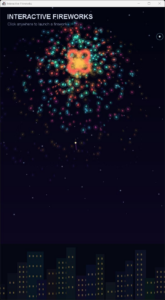
In this SwingLoops example, fireworks launch into a dark night sky above a simple city skyline. Each explosion produces dozens of glowing particles with different colors and movement patterns. You can click several positions to create multiple explosions, and the program launches fireworks automatically when you leave it running.

Interactive Fireworks

Source code

Save the following code as InteractiveFireworks.java:

import javax.swing.*;
import java.awt.*;
import java.awt.event.*;
import java.awt.geom.*;
import java.util.*;

public class InteractiveFireworks extends JPanel {
    private static final int W = 540, H = 960;
    private final Random random = new Random();
    private final java.util.List<Rocket> rockets = new ArrayList<>();
    private final java.util.List<Particle> particles = new ArrayList<>();
    private final Timer timer = new Timer(16, e -> update());
    private long lastLaunch;

    public InteractiveFireworks() {
        setPreferredSize(new Dimension(W, H));
        setBackground(new Color(3, 5, 20));

        addMouseListener(new MouseAdapter() {
            @Override
            public void mousePressed(MouseEvent e) {
                double x = e.getX() * W / (double) getWidth();
                double y = e.getY() * H / (double) getHeight();
                launch(x, y);
            }
        });
    }

    @Override
    public void addNotify() {
        super.addNotify();
        lastLaunch = System.currentTimeMillis();
        timer.start();
    }

    @Override
    public void removeNotify() {
        timer.stop();
        super.removeNotify();
    }

    private void launch(double tx, double ty) {
        double x = 40 + random.nextDouble() * (W - 80);
        double y = H;
        double dx = tx - x;
        double dy = ty - y;
        double distance = Math.max(1, Math.hypot(dx, dy));
        double speed = 9 + random.nextDouble() * 3;

        rockets.add(new Rocket(x, y,
                dx / distance * speed,
                dy / distance * speed,
                tx, ty, random.nextFloat()));
    }

    private void update() {
        long now = System.currentTimeMillis();

        if (now - lastLaunch >= 1700) {
            launch(80 + random.nextDouble() * (W - 160),
                    100 + random.nextDouble() * 350);
            lastLaunch = now;
        }

        for (Iterator<Rocket> it = rockets.iterator(); it.hasNext();) {
            Rocket r = it.next();
            double remaining = Point2D.distance(
                    r.x, r.y, r.tx, r.ty);

            if (remaining <= Math.hypot(r.vx, r.vy)) {
                r.x = r.tx;
                r.y = r.ty;
                explode(r);
                it.remove();
            } else {
                r.x += r.vx;
                r.y += r.vy;
            }
        }

        for (Iterator<Particle> it = particles.iterator();
             it.hasNext();) {
            Particle p = it.next();

            p.px = p.x;
            p.py = p.y;
            p.x += p.vx;
            p.y += p.vy;
            p.vx *= .988;
            p.vy = p.vy * .988 + .075;
            p.life -= .013f;

            if (p.life <= 0) it.remove();
        }

        repaint();
    }

    private void explode(Rocket r) {
        int count = 80 + random.nextInt(30);
        int pattern = random.nextInt(3);

        for (int i = 0; i < count; i++) {
            double angle = pattern == 2
                    ? random.nextDouble() * Math.PI * 2
                    : i * Math.PI * 2 / count;

            double speed = 2 + random.nextDouble() * 4;

            if (pattern == 1) {
                speed *= .5 + Math.abs(Math.sin(angle * 2));
            }

            particles.add(new Particle(r.x, r.y,
                    Math.cos(angle) * speed,
                    Math.sin(angle) * speed,
                    r.hue + random.nextFloat() * .08f));
        }
    }

    @Override
    protected void paintComponent(Graphics graphics) {
        super.paintComponent(graphics);
        Graphics2D g = (Graphics2D) graphics.create();
        g.setRenderingHint(RenderingHints.KEY_ANTIALIASING,
                RenderingHints.VALUE_ANTIALIAS_ON);
        g.scale(getWidth() / (double) W,
                getHeight() / (double) H);

        g.setPaint(new GradientPaint(0, 0,
                new Color(3, 5, 20),
                0, H, new Color(20, 9, 44)));
        g.fillRect(0, 0, W, H);

        drawCity(g);

        for (Rocket r : rockets) {
            g.setColor(Color.WHITE);
            g.fill(new Ellipse2D.Double(r.x - 3, r.y - 3, 6, 6));
            g.setColor(new Color(255, 190, 100, 100));
            g.setStroke(new BasicStroke(3));
            g.draw(new Line2D.Double(
                    r.x, r.y + 18, r.x, r.y));
        }

        for (Particle p : particles) {
            Color c = Color.getHSBColor(p.hue % 1f, .8f, 1f);
            int alpha = (int) (p.life * 230);

            g.setColor(new Color(c.getRed(),
                    c.getGreen(), c.getBlue(), alpha / 4));
            g.fill(new Ellipse2D.Double(
                    p.x - 8, p.y - 8, 16, 16));

            g.setColor(new Color(c.getRed(),
                    c.getGreen(), c.getBlue(), alpha));
            g.setStroke(new BasicStroke(2,
                    BasicStroke.CAP_ROUND,
                    BasicStroke.JOIN_ROUND));
            g.draw(new Line2D.Double(p.px, p.py, p.x, p.y));
            g.fill(new Ellipse2D.Double(
                    p.x - 2, p.y - 2, 4, 4));
        }

        g.dispose();
    }

    private void drawCity(Graphics2D g) {
        for (int i = 0; i < 18; i++) {
            int x = i * 32;
            int height = 45 + (i * 37) % 110;

            g.setColor(new Color(8, 12, 28));
            g.fillRect(x, H - height, 35, height);

            g.setColor(new Color(255, 205, 90, 100));
            for (int y = H - height + 12; y < H - 8; y += 18) {
                g.fillRect(x + 8, y, 4, 6);
                g.fillRect(x + 22, y, 4, 6);
            }
        }
    }

    private static class Rocket {
        double x, y, vx, vy, tx, ty;
        float hue;

        Rocket(double x, double y, double vx, double vy,
               double tx, double ty, float hue) {
            this.x = x;
            this.y = y;
            this.vx = vx;
            this.vy = vy;
            this.tx = tx;
            this.ty = ty;
            this.hue = hue;
        }
    }

    private static class Particle {
        double x, y, px, py, vx, vy;
        float hue, life = 1f;

        Particle(double x, double y,
                 double vx, double vy, float hue) {
            this.x = this.px = x;
            this.y = this.py = y;
            this.vx = vx;
            this.vy = vy;
            this.hue = hue;
        }
    }

    public static void main(String[] args) {
        SwingUtilities.invokeLater(() -> {
            JFrame frame = new JFrame("SwingLoops - Fireworks");
            frame.setDefaultCloseOperation(JFrame.EXIT_ON_CLOSE);
            frame.setContentPane(new InteractiveFireworks());
            frame.pack();
            frame.setLocationRelativeTo(null);
            frame.setVisible(true);
        });
    }
}

Run the example

You need Java 17 or later and a desktop environment capable of running Swing applications.

Open a terminal in the directory containing InteractiveFireworks.java, then compile and run it:

javac InteractiveFireworks.java
java InteractiveFireworks

A window with a preferred drawing area of 540 × 960 pixels opens. Fireworks launch automatically every 1.7 seconds.

Click anywhere in the window to launch a rocket toward that position. Clicking several locations creates multiple simultaneous explosions.

You can change the preferred panel size if the window is too large for your screen.

How does the animation work?

Updating the animation with a Swing Timer

The application uses a javax.swing.Timer to update the animation approximately every 16 milliseconds:

private final Timer timer = new Timer(16, e -> update());

Each update moves the rockets, updates the particles, removes expired objects, and requests a repaint.

The timer starts in addNotify() and stops in removeNotify(), preventing the animation from continuing after the panel is removed.

Because the timer executes its callback on Swing’s Event Dispatch Thread, mouse events, animation updates, and painting share the same thread.

Moving rockets toward the target

Each rocket starts near the bottom of the screen and receives a velocity pointing toward its target.

The direction is calculated from the difference between the target and starting positions:

double dx = tx - x;
double dy = ty - y;
double distance = Math.max(1, Math.hypot(dx, dy));

Math.hypot() calculates the Euclidean distance between two points.

We divide the direction components by this distance and multiply them by the desired speed:

double vx = dx / distance * speed;
double vy = dy / distance * speed;

This ensures that the rocket moves at a consistent speed regardless of its destination.

During each animation update, its position changes according to its velocity:

r.x += r.vx;
r.y += r.vy;

Once the rocket is close enough to reach its target during the next movement, the program triggers an explosion.

Creating particles with circular motion

An explosion produces between 80 and 109 particles.

For a circular burst, each particle receives a different angle:

double angle = i * Math.PI * 2 / count;

The horizontal and vertical velocity components are calculated using:

double vx = Math.cos(angle) * speed;
double vy = Math.sin(angle) * speed;

Together, these calculations distribute particles around the explosion center.

The example also introduces variations in particle speed and direction, producing different explosion shapes.

Adding gravity and damping

After an explosion, particles move independently.

Each frame applies damping and gravity:

p.vx *= .988;
p.vy = p.vy * .988 + .075;

Multiplying velocity by .988 gradually slows the particles.

The additional .075 accelerates them downward because Java2D’s Y coordinate increases toward the bottom of the screen.

The result is a curved trajectory: particles spread outward, slow down, and eventually fall.

This is a simple visual physics simulation rather than a fully realistic model, but it works well for a fireworks animation.

Creating fading particles

Each particle begins with a lifetime of 1.0:

float life = 1f;

Its lifetime decreases with every update:

p.life -= .013f;

The remaining lifetime determines the particle’s transparency:

int alpha = (int) (p.life * 230);

As life approaches zero, the particle becomes less visible.

Expired particles are removed using the iterator, which also prevents the particle collection from growing indefinitely.

Creating a glow effect

The glow is produced by drawing each particle twice.

First, a larger circle is drawn with low opacity:

g.setColor(new Color(
        c.getRed(), c.getGreen(), c.getBlue(), alpha / 4));

g.fill(new Ellipse2D.Double(
        p.x - 8, p.y - 8, 16, 16));

A small, brighter particle is then drawn on top.

The application also draws a short line between each particle’s previous and current positions, creating a glowing motion trail.

This approximates a neon effect using ordinary Java2D shapes, without shaders or blur filters.

Generating firework colors

The example uses Color.getHSBColor() to generate colors:

Color c = Color.getHSBColor(p.hue % 1f, .8f, 1f);

Each rocket receives a random hue, and its particles use nearby hue values.

This gives every explosion a recognizable color theme while still allowing subtle variation between individual particles.

Drawing the night sky

The background uses a GradientPaint that transitions from dark navy to deep purple.

A simple city skyline is drawn using rectangles, with smaller yellow rectangles representing illuminated windows.

These elements provide context for the fireworks without requiring image assets.

Customize the animation

Try changing one parameter at a time to see how it affects the result.

Parameter Effect
16 in the timer Animation update interval in milliseconds
1700 Time between automatic launches
80 + random.nextInt(30) Number of particles per explosion
9 + random.nextDouble() * 3 Rocket speed
.988 Particle damping; smaller values slow particles faster
.075 Gravity; larger values make particles fall faster
.013f Lifetime reduction; larger values make particles disappear sooner
new Color(3, 5, 20) Background color

For example, increasing the particle count to 150 makes each firework look fuller, but also increases the amount of rendering work.

Reducing gravity creates a floating, almost magical explosion, while increasing gravity makes particles fall more quickly.

Experimenting with these values is an easy way to create your own animation style.

The complete example uses only Java Swing and Java2D. No external libraries, physics engines, or image assets are required.

Happy coding!

How do I create a Spirograph animation in Java Swing?

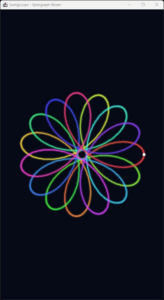
You can create a spirograph-style animation in Java Swing by calculating points on a hypotrochoid curve and connecting them with short line segments. Drawing progressively more segments makes a bright point appear to trace the pattern.

Spirograph Bloom
Spirograph Bloom

In this SwingLoops example, a rainbow flower takes shape over time, pauses, and fades away. The application uses only Java Swing and Java 2D, without external libraries or image assets.

Source code

Save the following code as SpirographBloom.java:

import java.awt.*;
import java.awt.geom.*;
import javax.swing.*;

public class SpirographBloom extends JPanel {
    private static final double CYCLE = 12.0;
    private static final int SAMPLES = 2400;
    private static final double R = 150;
    private static final double r = 40;
    private static final double d = 95;
    private static final double END = 8 * Math.PI;

    private final long start = System.nanoTime();
    private final Timer timer = new Timer(16, _ -> repaint());

    public SpirographBloom() {
        setPreferredSize(new Dimension(540, 960));
        setBackground(new Color(6, 9, 22));
    }

    @Override
    public void addNotify() {
        super.addNotify();
        timer.start();
    }

    @Override
    public void removeNotify() {
        timer.stop();
        super.removeNotify();
    }

    private static Point2D point(double t) {
        double ratio = (R - r) / r;
        double x = (R - r) * Math.cos(t)
                + d * Math.cos(ratio * t);
        double y = (R - r) * Math.sin(t)
                - d * Math.sin(ratio * t);
        return new Point2D.Double(x, y);
    }

    @Override
    protected void paintComponent(Graphics graphics) {
        super.paintComponent(graphics);
        Graphics2D g = (Graphics2D) graphics.create();
        try {
            g.setRenderingHint(RenderingHints.KEY_ANTIALIASING,
                    RenderingHints.VALUE_ANTIALIAS_ON);
            double scale = Math.min(
                    getWidth() / 540.0, getHeight() / 960.0);
            g.translate(getWidth() / 2.0, getHeight() / 2.0);
            g.scale(scale, scale);

            double seconds = (System.nanoTime() - start) / 1e9;
            double phase = (seconds % CYCLE) / CYCLE;
            double progress = Math.min(phase / 0.8, 1.0);
            float fade = phase < 0.9
                    ? 1f
                    : (float) Math.max(0, (1 - phase) / 0.1);
            int visible = (int) (progress * SAMPLES);

            for (int i = 1; i <= visible; i++) {
                double t0 = END * (i - 1) / SAMPLES;
                double t1 = END * i / SAMPLES;
                Point2D a = point(t0);
                Point2D b = point(t1);
                Shape segment = new Line2D.Double(a, b);
                Color color = Color.getHSBColor(
                        i / (float) SAMPLES, 0.75f, 1f);
                g.setColor(color);
                g.setComposite(
                        AlphaComposite.SrcOver.derive(fade * 0.12f));
                g.setStroke(new BasicStroke(9f,
                        BasicStroke.CAP_ROUND, BasicStroke.JOIN_ROUND));
                g.draw(segment);
                g.setComposite(
                        AlphaComposite.SrcOver.derive(fade));
                g.setStroke(new BasicStroke(2f,
                        BasicStroke.CAP_ROUND, BasicStroke.JOIN_ROUND));
                g.draw(segment);
            }

            Point2D tip = point(END * progress);
            g.setComposite(AlphaComposite.SrcOver.derive(fade));
            g.setColor(new Color(245, 250, 255));
            g.fill(new Ellipse2D.Double(
                    tip.getX() - 5, tip.getY() - 5, 10, 10));
        } finally {
            g.dispose();
        }
    }

    static void main() {
        SwingUtilities.invokeLater(() -> {
            JFrame frame = new JFrame("SwingLoops - Spirograph Bloom");
            frame.setDefaultCloseOperation(JFrame.EXIT_ON_CLOSE);
            frame.setContentPane(new SpirographBloom());
            frame.pack();
            frame.setLocationRelativeTo(null);
            frame.setVisible(true);
        });
    }
}

Run the example

You need a Java Development Kit version 25 and a desktop environment that supports Swing windows. Open a terminal in the directory containing the source file:

javac SpirographBloom.java
java SpirographBloom

Compilation was verified with JDK 25. Visual playback has not yet been verified.

The window has a preferred drawing area of 540 × 960 pixels. If it is too tall for your screen, change new Dimension(540, 960) to new Dimension(405, 720). Close the window to stop the application.

What is a hypotrochoid?

Imagine a small circle rolling without slipping inside a larger circle. Attach a drawing point to the small circle. As the circle rolls, the point traces a curve called a hypotrochoid.

The point can lie inside, on, or beyond the edge of the rolling circle. In this example, it lies beyond the edge, creating loops that resemble flower petals.

The curve is described by two equations:

k = (R - r) / r

x(t) = (R - r) × cos(t) + d × cos(k × t)
y(t) = (R - r) × sin(t) - d × sin(k × t)

Here, R is the fixed outer circle’s radius, r is the rolling circle’s radius, and d is the distance from the rolling circle’s center to the drawing point. The parameter t is an angle measured in radians; it is not elapsed time in seconds.

The first part of each equation locates the rolling circle’s center. That center travels around a circle of radius R - r.

The second part adds the drawing point’s offset from the rolling center. The minus sign in the vertical term accounts for the opposite rotation associated with rolling inside the outer circle.

The code implements these equations in point():

double ratio = (R - r) / r;
double x = (R - r) * Math.cos(t)
        + d * Math.cos(ratio * t);
double y = (R - r) * Math.sin(t)
        - d * Math.sin(ratio * t);

Swing’s vertical axis points downward, so the result is reflected vertically relative to the usual mathematical coordinate system. Neither construction circle is drawn; only the resulting curve is visible.

Why does the curve close at 8π?

For the chosen radii:

R = 150
r = 40
k = (150 - 40) / 40 = 11/4

Both angular components must return to their starting orientations for the complete tracing state to repeat.

At t = 8π:

First angle:   t = 8π         → 4 complete revolutions
Second angle:  (11/4)t = 22π  → 11 complete revolutions

This is why the example uses:

private static final double END = 8 * Math.PI;

For positive integer radii with R > r, a valid closure interval is:

END = 2π × r / gcd(R, r)

The greatest common divisor of 150 and 40 is 10, giving 2π × 40 / 10 = 8π. If you change the radii, revisit this interval rather than keeping END unchanged.

Revealing the curve over time

The animation converts elapsed seconds into a repeating phase between zero and one:

double phase = (seconds % CYCLE) / CYCLE;

The modulo operator resets the phase after every 12 seconds. Drawing occupies the first 80% of the cycle:

double progress = Math.min(phase / 0.8, 1.0);
int visible = (int) (progress * SAMPLES);

At six seconds, phase is 0.5 and progress is 0.625. The panel draws 1,500 of its 2,400 segments. At 9.6 seconds, the entire curve is visible.

Each segment joins two neighboring samples:

double t0 = END * (i - 1) / SAMPLES;
double t1 = END * i / SAMPLES;

More samples make the polyline approximate the mathematical curve more closely, but also increase the painting work. The bright drawing point is evaluated directly at END * progress, so it moves continuously between the sampled segment endpoints.

Creating the rainbow glow

The hue is based on the segment’s position along the complete curve:

Color color = Color.getHSBColor(i / (float) SAMPLES, 0.75f, 1f);

This assigns a stable color to each part of the drawing. Saturation and brightness remain fixed while the hue travels around the color wheel.

Each segment is drawn twice: first with a wide, low-opacity stroke, then with a thin, brighter stroke. The overlapping translucent strokes approximate a glow without a blur filter.

Rounded stroke caps help adjacent line segments join visually.

Holding and fading the pattern

The completed pattern remains fully visible from 9.6 to 10.8 seconds. During the last 1.2 seconds, opacity decreases linearly:

float fade = phase < 0.9
        ? 1f
        : (float) Math.max(0, (1 - phase) / 0.1);

For example, at phase 0.95, opacity is 0.5. The same fade value is applied to the curve and drawing point.

The background is cleared on every repaint by super.paintComponent(graphics). The application redraws the visible curve from its mathematical definition rather than accumulating pixels between frames.

The sequence repeats, but the transition is not a perfectly seamless fade-in: the drawing point reappears at full brightness when the next cycle starts.

Resizing and Swing painting

The code moves the coordinate origin to the panel’s center and applies a uniform scale:

double scale = Math.min(getWidth() / 540.0, getHeight() / 960.0);
g.translate(getWidth() / 2.0, getHeight() / 2.0);
g.scale(scale, scale);

Using the smaller scale factor preserves the curve’s proportions when the window changes shape. With these parameters, the point stays within a distance of (R - r) + d = 205 logical pixels from the center, leaving room inside the default canvas.

A Swing timer requests repaints approximately every 16 milliseconds. This targets roughly 60 updates per second, but does not guarantee that frame rate. Positions depend on elapsed time rather than the number of timer events.

The interface is created on Swing’s event-dispatch thread. The timer starts when the panel becomes displayable and stops when it is removed. Painting uses a copied Graphics2D context, disposed in a finally block after drawing.

Customize the animation

Parameter Effect
CYCLE Changes the total cycle duration.
SAMPLES Changes the curve’s sampling detail and rendering cost.
R and r Change the curve’s geometry; recalculate END afterward.
d Changes the drawing point’s offset and the shape of the loops.
9f and 2f Change the glow and bright stroke widths.
0.75f in getHSBColor() Changes color saturation.
Background color Changes the contrast behind the glowing curve.

For a first experiment, keep R, r, and END unchanged and reduce d from 95 to 40. The drawing point then lies on the rolling circle’s edge, producing a special case called a hypocycloid.

If you increase the radii or offset, check that the curve still fits inside the drawing area.

Free source code

The complete source code is included above. Save it as SpirographBloom.java to compile and run it without additional dependencies.

Explore the SwingLoops repository for the series’ source code collection.

How do I create a pendulum wave animation in Java Swing?

You can create a pendulum wave animation in Java Swing by drawing several pendulums and giving each one a slightly different oscillation frequency. Their movements gradually form changing patterns before returning to alignment.

Pendulum Wave
Pendulum Wave

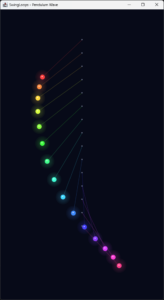
In this SwingLoops example, 15 glowing pendulums complete different numbers of swings within a shared 24-second cycle. The animation uses only Java Swing and Java 2D, without external libraries or image assets.

import javax.swing.*;
import java.awt.*;
import java.awt.geom.Ellipse2D;
import java.awt.geom.Line2D;

public class PendulumWave extends JPanel {
    private static final int COUNT = 15;
    private static final double CYCLE = 24.0;
    private final long start = System.nanoTime();
    private final Timer timer = new Timer(16, _ -> repaint());

    public PendulumWave() {
        setPreferredSize(new Dimension(540, 960));
        setBackground(new Color(7, 10, 24));
    }

    @Override
    public void addNotify() {
        super.addNotify();
        timer.start();
    }

    @Override
    public void removeNotify() {
        timer.stop();
        super.removeNotify();
    }

    @Override
    protected void paintComponent(Graphics graphics) {
        super.paintComponent(graphics);
        Graphics2D g = (Graphics2D) graphics.create();
        try {
            g.setRenderingHint(RenderingHints.KEY_ANTIALIASING,
                    RenderingHints.VALUE_ANTIALIAS_ON);

            double scale = Math.min(
                    getWidth() / 540.0, getHeight() / 960.0);
            g.translate(getWidth() / 2.0, getHeight() / 2.0);
            g.scale(scale, scale);
            g.translate(-270, -480);

            double time = (System.nanoTime() - start) / 1e9;
            double phase = (time % CYCLE) / CYCLE;

            for (int i = 0; i < COUNT; i++) {
                double pivotX = 270;
                double pivotY = 100 + i * 44;
                double length = 180;

                // Each pendulum completes an integer number
                // of swings during the shared 24-second cycle.
                double angle = 0.95 * Math.cos(
                        2 * Math.PI * (12 + i) * phase);
                double x = pivotX + length * Math.sin(angle);
                double y = pivotY + length * Math.cos(angle);

                Color color = Color.getHSBColor(
                        i / (float) COUNT, 0.75f, 1f);

                g.setComposite(AlphaComposite.SrcOver.derive(0.22f));
                g.setColor(color);
                g.setStroke(new BasicStroke(1.5f));
                g.draw(new Line2D.Double(pivotX, pivotY, x, y));

                g.setComposite(AlphaComposite.SrcOver);
                g.setColor(new Color(110, 120, 145));
                g.fill(new Ellipse2D.Double(
                        pivotX - 2, pivotY - 2, 4, 4));

                for (int glow = 4; glow >= 1; glow--) {
                    double radius = 8 + glow * 4;
                    g.setComposite(
                            AlphaComposite.SrcOver.derive(0.045f));
                    g.setColor(color);
                    g.fill(new Ellipse2D.Double(
                            x - radius, y - radius,
                            radius * 2, radius * 2));
                }

                g.setComposite(AlphaComposite.SrcOver);
                g.setColor(color);
                g.fill(new Ellipse2D.Double(x - 8, y - 8, 16, 16));
                g.setColor(new Color(255, 255, 255, 190));
                g.fill(new Ellipse2D.Double(x - 3, y - 4, 4, 4));
            }
        } finally {
            g.dispose();
        }
    }

    static void main() {
        SwingUtilities.invokeLater(() -> {
            JFrame frame = new JFrame("SwingLoops - Pendulum Wave");
            frame.setDefaultCloseOperation(JFrame.EXIT_ON_CLOSE);
            frame.setContentPane(new PendulumWave());
            frame.pack();
            frame.setLocationRelativeTo(null);
            frame.setVisible(true);
        });
    }
}

Run the example

Install a Java Development Kit and open a terminal in the directory containing the source file:

javac PendulumWave.java
java PendulumWave

A desktop environment is required to display the Swing window. Close the window to stop the application.

The preferred drawing area is 540 × 960 pixels. If the window is too tall for your display, change the dimensions to 405, 720. The drawing scales proportionally when you resize the window.

Calculating the pendulum angle

Each pendulum swings, according to a cosine function:

double angle = 0.95 * Math.cos(2 * Math.PI * (12 + i) * phase);

The formula has three main parts:

  • 0.95 is the angular amplitude in radians, approximately 54.4 degrees.
  • 2 * Math.PI represents one complete oscillation of the cosine function.
  • 12 + i determines how many oscillations the pendulum completes during the shared cycle.

Cosine varies between −1 and 1, so each pendulum’s angle varies between −0.95 and 0.95 radians.

In the beginning, every cosine evaluates to 1. All pendulums therefore start at the same angle.

Why do the pendulums return to alignment?

Elapsed time is converted into a repeating phase:

double phase = (time % CYCLE) / CYCLE;

With CYCLE set to 24 seconds, the phase advances from zero toward one, then returns to zero.

The first pendulum completes 12 oscillations during that interval. Each subsequent pendulum completes one more:

Pendulum Oscillations in 24 seconds Period
First 12 2 seconds
Second 13 About 1.85 seconds
Eighth 19 About 1.26 seconds
Fifteenth 26 About 0.92 seconds

Because all oscillation counts are integers, every pendulum completes a whole number of swings at the end of 24 seconds.

For an integer n:

cos(2π × n) = 1

The pendulums return to their starting angles and the pattern repeats. During the cycle, their different frequencies produce the changing wave patterns.

Here, “alignment” means the pendulums have the same angle. Their pivots remain vertically separated.

Converting the angle into screen coordinates

Once the angle is known, the bob’s position is calculated relative to its pivot:

double x = pivotX + length * Math.sin(angle);
double y = pivotY + length * Math.cos(angle);

The angle is measured from the downward vertical direction.

When the angle is zero:

sin(0) = 0
cos(0) = 1

Therefore:

x = pivotX
y = pivotY + length

The bob hangs directly below its pivot.

A positive angle moves the bob to the right, while a negative angle moves it to the left. Swing’s screen coordinates increase downward, which is why the vertical offset is added to pivotY.

Is this a physical pendulum simulation?

This example uses prescribed sinusoidal motion to create a visual effect.

All pendulums have the same drawn length, while their frequencies are assigned independently. Real pendulum wave demonstrations commonly use different lengths to get different periods.

For a simple pendulum at small angles, the approximate period is:

T = 2π × √(L / g)

Here, L is the pendulum length and g is gravitational acceleration. Longer pendulums swing more slowly.

Our animation does not solve that physical model. Its amplitude is also larger than the small-angle range where a real pendulum closely follows sinusoidal angular motion.

Creating the glow

Each bob is surrounded by four overlapping circles:

for (int glow = 4; glow >= 1; glow--) {
    double radius = 8 + glow * 4;
    // Draw a translucent circle.
}

Each circle has low opacity. Their overlapping areas become brighter toward the center, approximating a soft glow without applying a blur filter.

An opaque-colored bob and a small pale highlight are drawn afterward.

The code explicitly restores the composite before drawing opaque elements so that the glow’s transparency does not affect them.

Updating the animation safely

A Swing timer requests a repaint approximately every 16 milliseconds:

private final Timer timer = new Timer(16, _ -> repaint());

This targets roughly 60 updates per second, but actual timing depends on the system and Swing’s event queue.

The animation calculates positions from elapsed time rather than counting frames. A delayed repaint, therefore, does not change the intended 24-second cycle.

The interface is created with SwingUtilities.invokeLater(). Timer callbacks and painting also execute on Swing’s event-dispatch thread.

Customize the animation

Try changing one parameter at a time:

Parameter Effect
COUNT Changes the number of pendulums. Larger counts may require tighter vertical spacing.
CYCLE Changes the shared cycle duration. Larger values slow every pendulum.
12 + i Changes the oscillation counts. Keep integer counts to preserve the shared loop.
0.95 Changes the maximum swing angle in radians.
length Changes the drawn string length without changing the assigned frequency.
i * 44 Changes the vertical spacing between pivots.
0.75f in getHSBColor() Changes color saturation.

For example, replacing 12 + i with 12 + 2 * i increases the frequency difference between neighboring pendulums while retaining integer oscillation counts.

Explore the SwingLoops repository on GitHub for the series’ source code collection.

How do I create a neon hexagon vortex animation in Java Swing?

You can create a neon vortex in Java Swing by drawing nested hexagons with Graphics2D and changing their size, rotation, and color over time. Layering wide, transparent strokes behind each outline produces a soft glow without external libraries.

Neon Vortex
Neon Vortex

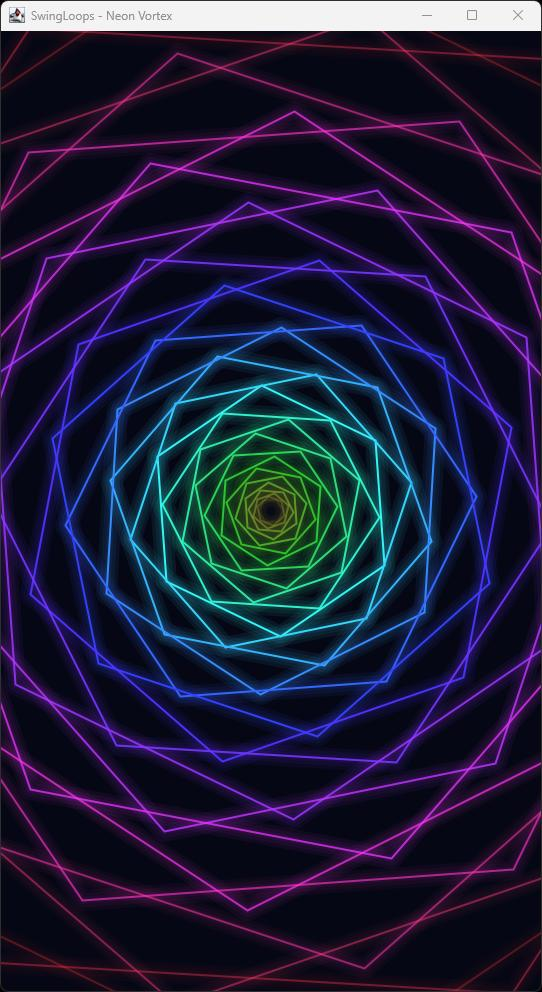
In this SwingLoops example, rainbow hexagons expand from a dark center to create a twisting tunnel. The animation follows an eight-second cycle and uses a portrait canvas suitable for recording a short video.

Source code

Save the following code as NeonVortex.java:

import javax.swing.*;
import java.awt.*;
import java.awt.geom.Path2D;

public class NeonVortex extends JPanel {
    private final long start = System.nanoTime();
    private final Timer timer = new Timer(16, e -> repaint());

    public NeonVortex() {
        setPreferredSize(new Dimension(540, 960));
        setBackground(new Color(5, 7, 20));
    }

    @Override
    public void addNotify() {
        super.addNotify();
        timer.start();
    }

    @Override
    public void removeNotify() {
        timer.stop();
        super.removeNotify();
    }

    @Override
    protected void paintComponent(Graphics graphics) {
        super.paintComponent(graphics);
        Graphics2D g = (Graphics2D) graphics.create();
        g.setRenderingHint(RenderingHints.KEY_ANTIALIASING,
                RenderingHints.VALUE_ANTIALIAS_ON);
        g.translate(getWidth() / 2.0, getHeight() / 2.0);
        double scale = Math.min(getWidth() / 540.0, getHeight() / 960.0);
        g.scale(scale, scale);
        // An eight-second cycle: positions and colors repeat together.
        double phase = ((System.nanoTime() - start) / 1e9 % 8.0) / 8.0;
        for (int i = 0; i < 32; i++) {
            double depth = (i / 32.0 + phase) % 1.0;
            double radius = 12 + 690 * depth * depth;
            double angle = depth * 4 * Math.PI + phase * 2 * Math.PI;
            float hue = (float) ((depth + phase) % 1.0);
            Color color = Color.getHSBColor(hue, 0.8f, 1f);
            float opacity = (float) Math.sin(Math.PI * depth);
            Shape ring = polygon(radius, angle);
            for (int glow = 3; glow >= 1; glow--) {
                g.setComposite(AlphaComposite.SrcOver.derive(opacity * 0.07f));
                g.setColor(color);
                g.setStroke(new BasicStroke(glow * 7f,
                        BasicStroke.CAP_ROUND, BasicStroke.JOIN_ROUND));
                g.draw(ring);
            }
            g.setComposite(AlphaComposite.SrcOver.derive(opacity));
            g.setColor(color);
            g.setStroke(new BasicStroke(2f));
            g.draw(ring);
        }
        g.dispose();
    }

    private static Shape polygon(double radius, double rotation) {
        Path2D path = new Path2D.Double();
        for (int vertex = 0; vertex < 6; vertex++) {
            double a = rotation + vertex * Math.PI / 3;
            double x = radius * Math.cos(a), y = radius * Math.sin(a);
            if (vertex == 0) path.moveTo(x, y);
            else path.lineTo(x, y);
        }
        path.closePath();
        return path;
    }

    public static void main(String[] args) {
        SwingUtilities.invokeLater(() -> {
            JFrame frame = new JFrame("SwingLoops - Neon Vortex");
            frame.setDefaultCloseOperation(JFrame.EXIT_ON_CLOSE);
            frame.setContentPane(new NeonVortex());
            frame.pack();
            frame.setLocationRelativeTo(null);
            frame.setVisible(true);
        });
    }
}

Run the example

You need a JDK and a desktop environment to run this Swing application. The source was compiled successfully with JDK 25; visual playback has not yet been verified.

Open a terminal in the directory containing NeonVortex.java, then compile and run it:

javac NeonVortex.java
java NeonVortex

The application opens a window with a preferred drawing area of 540 × 960 pixels. The animation continues until you close the window. If it does not fit your screen, reduce both preferred dimensions proportionally, for example to 405 × 720.

How does the animation work?

Refreshing the panel with a Swing Timer

A javax.swing.Timer requests a repaint approximately every 16 milliseconds:

private final Timer timer = new Timer(16, e -> repaint());

This targets roughly 60 updates per second, although actual timing depends on the system and event queue. The timer starts when the panel becomes displayable and stops when it is removed.

The animation uses elapsed time rather than a frame counter, so its cycle does not depend on receiving an exact number of timer events. SwingUtilities.invokeLater() creates the interface on Swing’s event-dispatch thread, where timer callbacks and painting also run.

Moving hexagons through the tunnel

The elapsed time is converted into a value from zero up to, but not including, one:

double phase = ((System.nanoTime() - start) / 1e9 % 8.0) / 8.0;

Each of the 32 hexagons receives a different position within the cycle:

double depth = (i / 32.0 + phase) % 1.0;
double radius = 12 + 690 * depth * depth;

As depth increases, the hexagon grows. Squaring depth makes growth slower near the center and faster toward the outside, suggesting motion toward the viewer. The modulo operation returns each hexagon to the center after it reaches the end of its cycle.

Drawing and rotating a hexagon

The polygon() method places six vertices around a circle. Each vertex is separated by 60 degrees, or Math.PI / 3 radians:

double a = rotation + vertex * Math.PI / 3;
double x = radius * Math.cos(a);
double y = radius * Math.sin(a);

A Path2D connects the vertices and closes the shape. The rotation combines the hexagon’s depth with the current animation phase:

double angle = depth * 4 * Math.PI + phase * 2 * Math.PI;

Different depths produce different orientations, while the phase rotates the tunnel over time.

Creating rainbow colors and a neon glow

Color.getHSBColor() converts a changing hue into a vivid RGB color. Saturation and brightness stay fixed while the hue moves around the color wheel.

For the glow, the application draws each hexagon three times using wide strokes with low opacity. A thin, brighter outline is drawn on top. This approximates a neon glow using ordinary strokes rather than a blur filter.

The opacity follows a sine curve:

float opacity = (float) Math.sin(Math.PI * depth);

Each hexagon fades in near the center, becomes brighter midway through its journey, and fades out near the outside. This also softens the moment when its depth wraps back to zero.

Preserving the aspect ratio

Before drawing, the code moves the coordinate origin to the panel’s center and applies a uniform scale based on the available width and height. Resizing the window therefore preserves the hexagons’ proportions instead of stretching them.

The drawing uses a copied Graphics2D context, which is disposed after painting so that its transforms and drawing settings do not affect other painting operations.

Customize the animation

Try changing one parameter at a time:

Parameter Effect
8.0 in the phase calculation Cycle duration in seconds; a larger value slows the animation. Change both occurrences together.
32 in the loop and depth calculation Number of hexagons; change both occurrences together.
690 in the radius calculation Maximum expansion distance.
depth * 4 * Math.PI Amount of twist across the tunnel.
glow * 7f Width of the glow strokes.
new Color(5, 7, 20) Background color.

The complete source code above is free to copy and run. No external libraries or image assets are required.