Introduction to Apache Maven

In this post you will learn about Apache Maven. What is Maven? In simple words, Maven is a tool that we can use to build and manage a Java based project. Compare to the older type of build tool such as Ant, which is also an Apache project, Maven gives developers a standard way to build projects, a clear definition of the projects consisted of, an easy way to publish project information and an easy management of the project libraries dependency.

In Maven, the project libraries (Jars) will be maintained in the Maven repository and can be shared among projects. We don’t need to include the Jars in the project’s source code, as what we usually do when using tool like Ant. And here are the main objectives of the Apache Maven project:

  • Making the build process easy.
  • Providing a uniform build system.
  • Providing quality project information.
  • Providing guidelines for best practices development.
  • Allowing transparent migration to a new features.

After you know a little about Maven, let’s continue to the next step, installing the Apache Maven.

Step 1. Downloading Apache Maven

  • Go to Apache Maven and from the Get Maven section on the left sidebar click Download link.
  • Download the appropriate installer for your platform. For example, I am downloading the .zip file. The latest version when this post is written is Maven 3.1.0 (apache-maven-3.1.0-bin.zip).
  • Extract the downloaded zip file. For example, I am extracting it into D:\Toolbox\apache-maven-3.1.0 directory.

Step 2. Configuring Environment Variables

  • After extracting Maven distribution you have to define M2_HOME environment variable. The value of this variable is the path to your Maven installation.
  • You can create environment variable using the following steps:
    • Right click on My Computer.
    • Select Properties menu.
    • Select Advanced system settings.
    • In the System Properties window select the Advanced tab and click the Environment Variables button.
    • Add the variable in the System variables section.
    • Click OK to proceed.
  • Add the %M2_HOME%\bin; into your PATH environment variable so that you can execute Maven command from any path inside your command prompt. This PATH variable can also be updated in the System variables section.

  • Open your command prompt and type echo %M2_HOME%. Pressing Enter and you should see the value of the variable printed on the console. For example:
D:\>echo %M2_HOME%
D:\Toolbox\apache-maven-3.1.0
  • To check if Maven also in your Path variable you can execute echo %PATH% in your command prompt. You should see the path to Maven binary in the Path variable.
D:\>echo %PATH%
D:\Toolbox\apache-maven-3.1.0\bin;C:\Program Files (x86)\Java\jdk1.7.0_13\bin;

Step 3. Running Maven

  • Now you have Maven installed and configured. Let’s run Maven for the first time.
  • To run Maven we use the mvn command.
  • For example to check the version of the Maven we run mvn -version
  • You will see the following output, more or less, it depends on the JDK version you have in your machine.
D:\>mvn -version
Apache Maven 3.1.0 (893ca28a1da9d5f51ac03827af98bb730128f9f2; 2013-06-28 10:15:32+0800)
Maven home: D:\Toolbox\apache-maven-3.1.0
Java version: 1.7.0_13, vendor: Oracle Corporation
Java home: C:Program Files (x86)\Java\jdk1.7.0_13\jre
Default locale: en_US, platform encoding: Cp1252
OS name: "windows 7", version: "6.1", arch: "x86", family: "windows"

Congratulations! You’ve installed Apache Maven successfully on your development machine. On the next post I will show you how to create a new project using Maven.
Introduction to JetBrains IntelliJ IDEA Community Edition

In this post I will introduce to you the JetBrains IntelliJ IDEA, one the most powerful IDE (Integrated Development Environment) for Java development or other languages that run on the JVM such as Groovy and Scala. IntelliJ IDEA comes in two editions, the IntelliJJ IDEA Ultimate Edition and the IntelliJ IDEA Community Edition.

The IntelliJ IDEA Community Edition is an open source version of Intelli IDEA. That’s mean you can use it for free. If you work with standard Java, Groovy, Scala or mobile development using Android then the Community Edition can be your choice. If you work with in web or Java EE development then the Ultimate Edition is the way to go.

Here are some features that you will get when using the IntelliJ IDEA Community Edition:

  • An Intelligent code editor that has all the smarts for understanding Java, XML and Groovy code.
  • Refactorings, code inspections and intentions, super-fast navigation and search
  • Testing framework integration: JUnit and TestNG
  • Build tools support: Ant and Maven
  • Popular version control systems integration: CVS, Subversion and Git
  • Swing UI designer

After a bit of introduction, let’s begin the installation.

Step 1. Getting the Installation Distribution

  • Download the installation package of the IntelliJ IDEA Community Edition.
  • Click Download IntelliJ IDEA Community Edition to go the download page.
  • On the page you can see two editions, select the Community Edition. The current version available when this post was written is the version 12.1.4. You can also see that the download are available for Windows, Mac OS X and Linux. For this post I will download the Windows version. The download size for the Windows installer is around 130 MB.

Step 2. Install IntelliJ IDEA Community Edition

  • To begin, double-click the installer you’ve downloaded, for example ideaIC-12.1.4.exe.
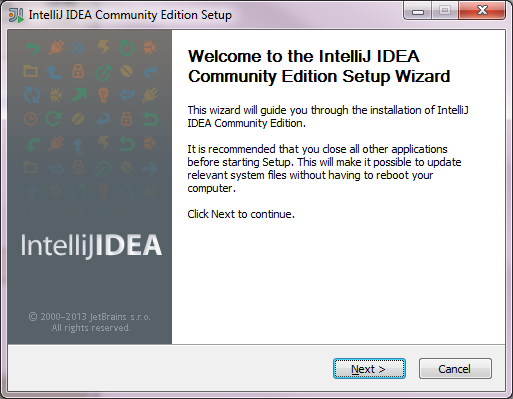
  • You’ll be greeted with the following screen
intellij-idea-community-edition-setup-step-1

IntelliJ IDEA Setup Welcome Screen

  • Press the Next button to continue.
  • You’ll be asked the installation location. On Windows it will be defaulted to the C:\Program Files directory.
  • Press Next for a couple of times until the installation complete.
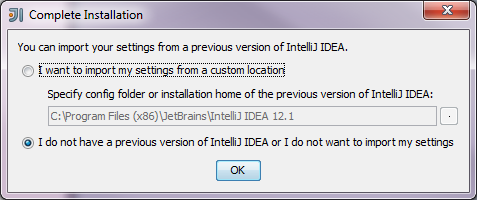
  • When you choose to run the IntelliJ IDEA for the first time you’ll get the following screen
Installation Complete Screen

Installation Complete Screen

  • Press OK button to start IntelliJ IDEA for the first time. You will be shown a splash screen right after you press the button and continued by the screen welcoming you to the IDE.
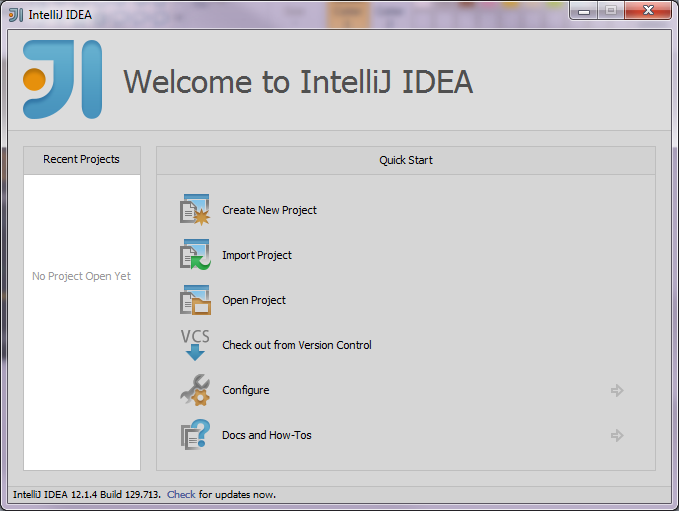
Welcome to IntelliJ IDEA

Welcome to IntelliJ IDEA

Step 3. Now you have the IntelliJ IDEA Community Edition installed in your machine. Let’s create your first program using IDEA.

  • From the Welcome Screen above click the Create New Project menu.
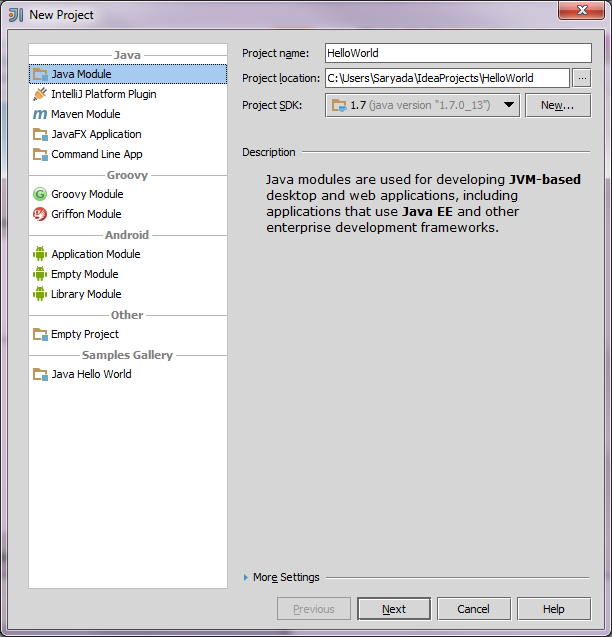
  • A New Project dialog window will be shown. In this dialog you can do:
Create a New Project Window Dialog

Create a New Project Window Dialog

  • Enter the Project Type, choose Java Module.
  • Define the Project Name. We’ll just name it HelloWorld.
  • Choose the Project Location directory.
  • Select the JDK version you’ll be using.
  • Press the Next button followed by the Finish button to continue.

Step 4. IntelliJ IDEA Main Window, creating HelloWorld.java

  • Here is the Main Window of IntelliJ IDEA.
IntelliJ IDEA Community Edition

IntelliJ IDEA Community Edition

  • The bigger screenshot of the project explorer panel.
Project Explorer Window

Project Explorer Window

  • Before we create a class let’s create a package.
  • Right-click the src folder, continued by selecting the New and Package menu.
  • Enter the package name, for instance org.kodejava.introduction
  • To create a class right click on the newly created package, select New and Java Class menu.
  • In the Create New Class dialog enter HelloWorld in the Name text field and choose Class from the Kind dropdown selection.
  • Type the following code in the editor.
package org.kodejava.introduction;

public class HelloWorld {
    private String name;

    public String getName() {
        return name;
    }

    public void setName(String name) {
        this.name = name;
    }

    public static void main(String[] args) {
        HelloWorld hello = new HelloWorld();

        String name = "world";
        hello.setName(name);
        hello.sayHello();
    }

    private void sayHello() {
        System.out.println("Hello " + getName() + "!");
    }
}
  • Press Shift + F10 or click the green Run button to execute your code.
  • And we are done!

Other things you can do next is to learn more about the menu and the keyboard shortcuts that you can use while working with the IDE. One good place is to look at the Help, Tip of the Day menu.

That’s finishes our introduction to the IntelliJ IDEA Community Edition IDE. I hope you can continue your learning and this IDE will surely help you to understand Java better. Because it is not just a tool to write code, it will give you a lot of suggestion so that you can always improve your code quality.