
Game programming is a fun way to learn Java because it combines programming concepts with visual results. Instead of writing programs that only print text to the console, we can create characters, draw objects, and eventually build interactive games.
In this tutorial, we will take our first step into 2D game programming using Java Swing. We will create a simple game window and draw a player represented by a blue square.
This is the first article in our 2D Game Programming with Java Swing series, where we will learn to build games from scratch without relying on an external game engine.
What is 2D game programming?
A 2D game is a game where objects are positioned in a two-dimensional space using horizontal and vertical coordinates.
Some familiar examples include Pong, Snake, Breakout, and traditional platform games.
Most 2D games share several important concepts:
- Game window: The area where the game is displayed.
- Game objects: Players, enemies, obstacles, and other elements.
- Rendering: Drawing game objects on the screen.
- Input handling: Responding to keyboard and mouse input.
- Game loop: Continuously updating and displaying the game.
- Collision detection: Detecting when objects touch or overlap.
We will explore these concepts one at a time throughout the series.
Why use Java Swing?
Java Swing is a GUI toolkit included in the Java Development Kit (JDK). Although it was primarily designed for desktop applications, we can also use it to build simple 2D games.
Swing provides several useful classes:
| Class | Purpose |
|---|---|
JFrame |
Creates the main game window |
JPanel |
Provides an area for drawing game objects |
Graphics |
Offers basic drawing operations |
Graphics2D |
Provides more advanced 2D drawing capabilities |
Timer |
Can schedule periodic updates for simple games |
One advantage of using Swing is that we do not need to install an additional game engine.
By building games directly with Swing and Java 2D, we can better understand the fundamental techniques used in game development.
What do we need?
Before getting started, make sure you have:
- Java Development Kit (JDK) 25
- Apache Maven
- A Java IDE such as IntelliJ IDEA, Eclipse, or NetBeans
We will use Java 25, an LTS release, for this series.
To verify your Java installation, open a terminal and run:
java -version
Then check your Maven installation:
mvn -version
Creating our first game project
Create a Maven project named java-2d-game.
Our initial project structure will look like this:
java-2d-game/
├── pom.xml
└── src/
    └── main/
        └── java/
            └── org/
                └── kodejava/
                    └── game/
                        └── Game.java
We will start with a single Java class to keep the example easy to understand.
As our game becomes more complex, we will introduce additional classes to organize the code.
Creating the game window
Let’s create a Java class named Game.java.
package org.kodejava.game;

import javax.swing.JFrame;
import javax.swing.JPanel;
import javax.swing.SwingUtilities;
import java.awt.Color;
import java.awt.Dimension;
import java.awt.Graphics;
import java.awt.Graphics2D;

public class Game extends JPanel {

    private static final int WIDTH = 800;
    private static final int HEIGHT = 600;

    public Game() {
        setPreferredSize(new Dimension(WIDTH, HEIGHT));
        setBackground(Color.BLACK);
    }

    @Override
    protected void paintComponent(Graphics g) {
        super.paintComponent(g);

        Graphics2D g2d = (Graphics2D) g.create();

        try {
            g2d.setColor(Color.BLUE);
            g2d.fillRect(100, 100, 50, 50);
        } finally {
            g2d.dispose();
        }
    }

    public static void main(String[] args) {
        SwingUtilities.invokeLater(() -> {
            JFrame frame = new JFrame("My First Java 2D Game");

            frame.setDefaultCloseOperation(
                    JFrame.EXIT_ON_CLOSE);

            frame.add(new Game());
            frame.pack();
            frame.setLocationRelativeTo(null);
            frame.setResizable(false);
            frame.setVisible(true);
        });
    }
}
When we run this program, a window will appear with a black background and a blue square.
The square represents our first game object. It does not move yet, but it provides a starting point for the next tutorials.
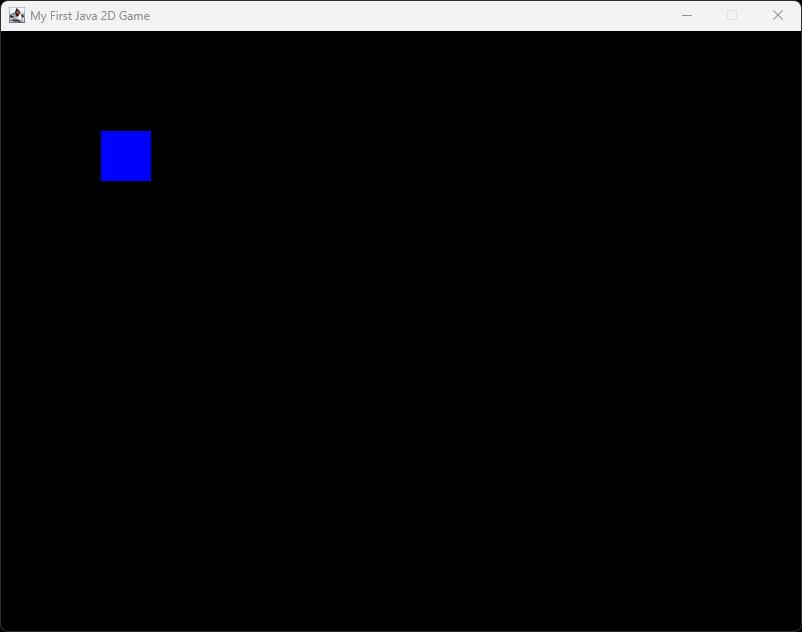
Game Window
Understanding the code
Let’s examine the important parts of our program.
Extending JPanel
public class Game extends JPanel {
By extending JPanel, our class becomes a Swing component that can display custom graphics.
We can override its painting method to draw our game objects.
Setting the game area
setPreferredSize(new Dimension(800, 600));
setBackground(Color.BLACK);
Here, we define a preferred game area of 800 pixels wide and 600 pixels high.
We also set the background color to black.
Drawing the player
@Override
protected void paintComponent(Graphics g) {
    super.paintComponent(g);

    Graphics2D g2d = (Graphics2D) g.create();

    try {
        g2d.setColor(Color.BLUE);
        g2d.fillRect(100, 100, 50, 50);
    } finally {
        g2d.dispose();
    }
}
The paintComponent() method is called by Swing when the component needs to be painted.
We call super.paintComponent(g) first so that Swing can perform its standard component painting.
Next, we create a copy of the graphics context and use Graphics2D to draw a rectangle.
The fillRect() method accepts four parameters:
fillRect(x, y, width, height);
In our example:
x = 100: The horizontal position.y = 100: The vertical position.width = 50: The rectangle width.height = 50: The rectangle height.
The rectangle is drawn at position (100, 100) and has a size of 50 × 50 pixels.
Finally, we dispose of the copied graphics context to release its associated resources.
Creating the main window
JFrame frame = new JFrame("My First Java 2D Game");
The JFrame class creates the main desktop window.
We then add our game panel:
frame.add(new Game());
The pack() method adjusts the window size based on the preferred size of its contents.
We use setLocationRelativeTo(null) to center the window on the screen.
Understanding SwingUtilities.invokeLater()
SwingUtilities.invokeLater(() -> {
    // Create and display the game window
});
Swing uses a special thread called the Event Dispatch Thread (EDT) to process GUI events and update components.
Using SwingUtilities.invokeLater() ensures that our Swing interface is created on this thread.
This is important because most Swing components are not thread-safe.
Later in this series, we will learn how to coordinate game updates with Swing rendering.
Running the program
First, compile the project using Maven:
mvn compile
Then run the main class from your IDE.
Alternatively, after compiling, you can run it from the project root using:
java -cp target/classes org.kodejava.game.Game
You should see an 800 × 600 game area with a blue square displayed near the upper-left corner.
Congratulations! You have created your first 2D game window in Java.
Although the square is not interactive yet, we already have two essential components of a game: a window and a rendering area.
Try it yourself
Before moving to the next tutorial, try making a few changes to the program.
Exercise 1: Change the player color
Replace:
g2d.setColor(Color.BLUE);
with:
g2d.setColor(Color.GREEN);
Exercise 2: Move the player
Modify the rectangle position:
g2d.fillRect(300, 200, 50, 50);
Observe how the square appears at a different location.
Exercise 3: Change the player size
Try drawing a larger rectangle:
g2d.fillRect(100, 100, 100, 100);
These simple exercises introduce coordinates, colors, and object dimensions, which are fundamental concepts in 2D game programming.
Summary
In this tutorial, we learned how to create our first 2D game window using Java Swing.
We covered:
- The basic concepts of 2D game programming.
- Why Java Swing is useful for learning game development.
- How to create a game window using
JFrame. - How to create a drawing area using
JPanel. - How to draw a rectangle using
Graphics2D. - Why Swing applications use the Event Dispatch Thread.
In the next tutorial, How do I create a game window using Java Swing?, we will explore game window configuration in greater detail and separate our main window from the drawing panel.
Maven Dependencies
Java Swing and Java 2D are included in the standard JDK through the java.desktop module, so no external dependencies are required.
We only need to configure Maven to compile our project with Java 25.
Here is the complete pom.xml:
<?xml version="1.0" encoding="UTF-8"?>
<project xmlns="http://maven.apache.org/POM/4.0.0"
         xmlns:xsi="http://www.w3.org/2001/XMLSchema-instance"
         xsi:schemaLocation="
             http://maven.apache.org/POM/4.0.0
             https://maven.apache.org/xsd/maven-4.0.0.xsd">

    <modelVersion>4.0.0</modelVersion>

    <groupId>org.kodejava</groupId>
    <artifactId>java-2d-game</artifactId>
    <version>1.0-SNAPSHOT</version>

    <properties>
        <maven.compiler.release>25</maven.compiler.release>
        <project.build.sourceEncoding>UTF-8</project.build.sourceEncoding>
    </properties>

    <build>
        <plugins>
            <plugin>
                <groupId>org.apache.maven.plugins</groupId>
                <artifactId>maven-compiler-plugin</artifactId>
                <version>3.14.1</version>
            </plugin>
        </plugins>
    </build>
</project>
Required Maven artifacts: None for Swing or Java 2D.
The Maven Compiler Plugin is configured as a build plugin, not an application dependency.
Java API references: