How do I define stroke when drawing a shape in Java 2D?

package org.kodejava.awt.geom;

import javax.swing.*;
import java.awt.*;
import java.awt.geom.Line2D;

public class DrawStrokeDemo extends JComponent {
    public static void main(String[] args) {
        JFrame frame = new JFrame("Draw Stroke Demo");
        frame.setDefaultCloseOperation(WindowConstants.EXIT_ON_CLOSE);
        frame.getContentPane().add(new DrawStrokeDemo());
        frame.pack();
        frame.setSize(new Dimension(420, 200));
        frame.setVisible(true);
    }

    @Override
    public void paint(Graphics g) {
        Graphics2D g2 = (Graphics2D) g;

        float[] strokes = {1, 2, 3, 4, 5, 6};
        for (float stroke : strokes) {
            g2.setStroke(new BasicStroke(stroke));
            g2.draw(new Line2D.Float(50, stroke * 20, 350, stroke * 20));
        }
    }
}

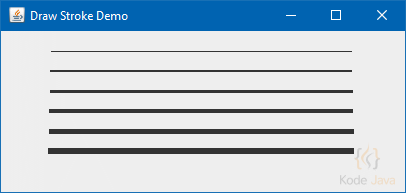
This code snippet produce the following output:
Draw 2D Stroke

Draw 2D Stroke

How do I create a gradient paint in Java 2D?

To change the color of a graphics shape we can use the setPaint() method. For a simple coloring we can pass the color object into this method, such as Color.RED or Color.GREEN.

If you want to paint with a gradient paint you can use the GradientPaint class. This class provides a way to fill a shape with a linear color gradient pattern. To create a gradient color pattern you can pass the following parameter to the object constructor.

  • x1: x coordinate of the first specified point in user space
  • y1: y coordinate of the first specified point in user space
  • color1: color at the first specified point
  • x2: x coordinate of the second specified point in user space
  • y2: y coordinate of the second specified point in user space
  • color2: color at the second specified point
package org.kodejava.awt.geom;

import javax.swing.*;
import java.awt.*;
import java.awt.geom.Rectangle2D;

public class GradientPaintDemo extends JComponent {
    public static void main(String[] args) {
        JFrame frame = new JFrame("Gradient Paint Demo");
        frame.setDefaultCloseOperation(WindowConstants.EXIT_ON_CLOSE);
        frame.getContentPane().add(new GradientPaintDemo());
        frame.pack();
        frame.setSize(new Dimension(420, 350));
        frame.setVisible(true);
    }

    @Override
    public void paint(Graphics g) {
        Graphics2D g2 = (Graphics2D) g;

        GradientPaint blackToGray = new GradientPaint(50, 50, Color.BLACK,
                300, 100, Color.LIGHT_GRAY);
        g2.setPaint(blackToGray);
        g2.fill(new Rectangle2D.Double(50, 50, 300, 100));

        GradientPaint blueToBlack = new GradientPaint(0, 0, Color.BLUE,
                400, 400, Color.BLACK);
        g2.setPaint(blueToBlack);
        g2.fill(new Rectangle2D.Double(50, 160, 300, 100));
    }
}

This code snippet produce the following output:

2D Gradient Paint Demo

2D Gradient Paint Demo

How do I draw an arc in Java 2D?

Arc2D is the abstract superclass for all objects that store a 2D arc defined by a framing rectangle, start angle, angular extent (length of the arc), and a closure type (Arc2D.OPEN, Arc2D.CHORD, or Arc2D.PIE).

To constructs a new arc in double values, such as defining the specified location, size, angular extents, and closure type we can use the Arc2D.Double static-inner class.

package org.kodejava.awt.geom;

import javax.swing.*;
import java.awt.*;
import java.awt.geom.Arc2D;

public class DrawArc extends JComponent {
    public static void main(String[] args) {
        JFrame frame = new JFrame("Draw Arc Demo");
        frame.setDefaultCloseOperation(WindowConstants.EXIT_ON_CLOSE);
        frame.getContentPane().add(new DrawArc());
        frame.pack();
        frame.setSize(new Dimension(420, 450));
        frame.setVisible(true);
    }

    @Override
    public void paint(Graphics g) {
        Graphics2D g2 = (Graphics2D) g;

        g2.setStroke(new BasicStroke(2.0f));
        g2.setPaint(Color.RED);
        g2.draw(new Arc2D.Double(50, 50, 300, 300, 0, 90, Arc2D.PIE));
        g2.setPaint(Color.GREEN);
        g2.draw(new Arc2D.Double(50, 50, 300, 300, 90, 90, Arc2D.PIE));
        g2.setPaint(Color.BLUE);
        g2.fill(new Arc2D.Double(50, 50, 300, 300, 180, 90, Arc2D.PIE));
    }
}

Here is the result you’ll get when you run the snippet:

Draw 2D Arc

Draw 2D Arc

How do I draw an ellipse in Java 2D?

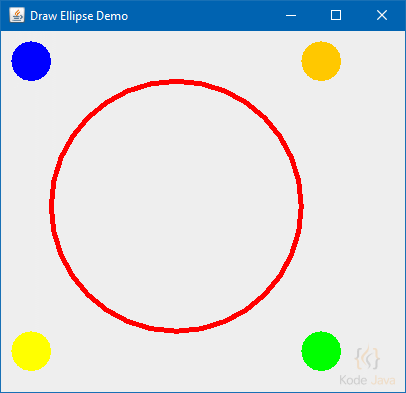
The Ellipse2D class define an ellipse that is defined by a framing rectangle. You can create an ellipse using a double or float values. When creating an ellipse using double values use the Ellipse2D.Double class. And for the float values you can use the Ellipse2D.Float class.

package org.kodejava.awt.geom;

import javax.swing.*;
import java.awt.*;
import java.awt.geom.Ellipse2D;

public class DrawEllipse extends JComponent {
    public static void main(String[] args) {
        JFrame frame = new JFrame("Draw Ellipse Demo");
        frame.setDefaultCloseOperation(WindowConstants.EXIT_ON_CLOSE);
        frame.getContentPane().add(new DrawEllipse());
        frame.pack();
        frame.setSize(new Dimension(420, 400));
        frame.setVisible(true);
    }

    @Override
    public void paint(Graphics g) {
        Graphics2D g2 = (Graphics2D) g;

        g2.setPaint(Color.RED);
        g2.setStroke(new BasicStroke(5.0f));
        g2.draw(new Ellipse2D.Double(50, 50, 250, 250));

        g2.setPaint(Color.BLUE);
        g2.fill(new Ellipse2D.Double(10, 10, 40, 40));

        g2.setPaint(Color.YELLOW);
        g2.fill(new Ellipse2D.Double(10, 300, 40, 40));

        g2.setPaint(Color.GREEN);
        g2.fill(new Ellipse2D.Double(300, 300, 40, 40));

        g2.setPaint(Color.ORANGE);
        g2.fill(new Ellipse2D.Double(300, 10, 40, 40));
    }
}

Here is the result you’ll get when you run the snippet:

Draw 2D Ellipse

Draw 2D Ellipse

How do I draw a GeneralPath in Java 2D?

package org.kodejava.awt.geom;

import javax.swing.*;
import java.awt.*;
import java.awt.geom.GeneralPath;

public class DrawGeneralPath extends JComponent {
    public static void main(String[] args) {
        JFrame frame = new JFrame("Draw GeneralPath Demo");
        frame.setDefaultCloseOperation(WindowConstants.EXIT_ON_CLOSE);
        frame.getContentPane().add(new DrawGeneralPath());
        frame.pack();
        frame.setSize(new Dimension(420, 400));
        frame.setVisible(true);
    }

    @Override
    public void paint(Graphics g) {
        Graphics2D g2 = (Graphics2D) g;

        g2.setStroke(new BasicStroke(4.0f));
        g2.setPaint(Color.GREEN);

        int[] xPoints = {10, 50, 100, 150, 200, 250, 300, 350};
        int[] yPoints = {10, 50, 10, 50, 10, 50, 10, 50};
        GeneralPath path = new GeneralPath(GeneralPath.WIND_EVEN_ODD,
                xPoints.length);

        // Adds point to the path by moving to the specified
        // coordinates.
        path.moveTo(xPoints[0], yPoints[0]);
        for (int i = 1; i < xPoints.length; i++) {
            // Adds a point to the path by drawing a straight
            // line from the current position to the specified
            // coordinates.
            path.lineTo(xPoints[i], yPoints[i]);
        }
        path.curveTo(150, 150, 300, 300, 50, 250);
        path.closePath();
        g2.draw(path);

        // Draw another path, a start
        g2.setPaint(Color.RED);
        g2.setStroke(new BasicStroke(2.0f));
        path = new GeneralPath(GeneralPath.WIND_NON_ZERO);
        path.moveTo(200, 50);
        path.lineTo(270, 300);
        path.lineTo(100, 120);
        path.lineTo(300, 120);
        path.lineTo(130, 300);
        path.closePath();
        g2.draw(path);
    }
}

Here is the result you’ll get when you run the snippet:

Draw 2D General Path

Draw 2D General Path

How do I draw a round rectangle in Java 2D?

The RoundRectangle2D class defines a rectangle with rounded corners defined by a location (x,y), dimension (w x h), and the width and height of an arc with which to round the corners.

The RoundRectangle2D.Double class constructs a RoundRectangle2D from the specified values in double, including the location, width and the arch of the round rectangle.

package org.kodejava.awt.geom;

import javax.swing.*;
import java.awt.*;
import java.awt.geom.RoundRectangle2D;

public class DrawRoundRectangle extends JComponent {
    public static void main(String[] args) {
        JFrame frame = new JFrame("Rounded Rectangle Demo");
        frame.setDefaultCloseOperation(WindowConstants.EXIT_ON_CLOSE);
        frame.getContentPane().add(new DrawRoundRectangle(), BorderLayout.CENTER);
        frame.pack();
        frame.setSize(420, 300);
        frame.setVisible(true);
    }

    @Override
    public void paint(Graphics g) {
        Graphics2D g2 = (Graphics2D) g;

        g2.setPaint(Color.RED);
        g2.setStroke(new BasicStroke(2.0f));

        double x = 50;
        double y = 50;
        double w = x + 250;
        double h = y + 100;
        g2.draw(new RoundRectangle2D.Double(x, y, w, h, 50, 50));
    }
}

Here is the result you’ll get when you run the snippet:

Draw 2D Round Rectangle

Draw 2D Round Rectangle

How do I draw a rectangle in Java 2D?

The code snippet below show you how to use the Graphics2D class the draw a rectangle. You can see the snippet in the paintComponent(Graphics g) method defined in the anonymous JPanel object.

To draw a rectangle we use the Rectangle2D.Double static-inner class. The constructor of this class accept the information about the rectangle x, y coordinates and its width and height.

package org.kodejava.awt.geom;

import javax.swing.*;
import java.awt.*;
import java.awt.geom.Rectangle2D;

public class DrawRectangle {
    public static void main(String[] args) {
        SwingUtilities.invokeLater(() -> {
            JFrame frame = new JFrame("Draw Rectangle");
            frame.setDefaultCloseOperation(WindowConstants.EXIT_ON_CLOSE);
            frame.add(new JPanel() {
                @Override
                protected void paintComponent(Graphics g) {
                    // Draw a rectangle using Rectangle2D class
                    Graphics2D g2 = (Graphics2D) g;
                    g2.setColor(Color.RED);

                    double x = 100;
                    double y = 100;
                    double width = x + 200;
                    double height = y + 50;

                    // Draw the red rectangle
                    g2.draw(new Rectangle2D.Double(x, y, width, height));

                    g2.setColor(Color.BLUE);
                    // Draw the blue rectangle
                    g2.draw(new Rectangle2D.Double(150, 50, 200, 250));
                }
            }, BorderLayout.CENTER);

            frame.pack();
            frame.setSize(new Dimension(500, 400));
            frame.setVisible(true);
        });
    }
}

Here is the result you’ll get when you run the snippet:

Draw 2D Rectangle

Draw 2D Rectangle

How do I draw a line in Java 2D?

The following code snippet show you how to draw a simple line using Graphics2D.draw() method. This method take a parameter that implements the java.awt.Shape interface.

To draw a line we can use the Line2D.Double static-inner class. This class constructor takes four integers values that represent the start (x1, y1) and end (x2, y2) coordinate of the line.

package org.kodejava.awt.geom;

import javax.swing.*;
import java.awt.*;
import java.awt.geom.Line2D;

public class DrawLine extends JComponent {
    public static void main(String[] args) {
        JFrame frame = new JFrame("Draw Line");
        frame.setDefaultCloseOperation(JFrame.EXIT_ON_CLOSE);
        frame.getContentPane().add(new DrawLine());
        frame.pack();
        frame.setSize(new Dimension(420, 440));
        frame.setVisible(true);
    }

    @Override
    public void paint(Graphics g) {
        // Draw a simple line using the Graphics2D draw() method.
        Graphics2D g2 = (Graphics2D) g;
        g2.setStroke(new BasicStroke(2f));
        g2.setColor(Color.RED);
        g2.draw(new Line2D.Double(50, 150, 250, 350));
        g2.setColor(Color.GREEN);
        g2.draw(new Line2D.Double(250, 350, 350, 250));
        g2.setColor(Color.BLUE);
        g2.draw(new Line2D.Double(350, 250, 150, 50));
        g2.setColor(Color.YELLOW);
        g2.draw(new Line2D.Double(150, 50, 50, 150));
        g2.setColor(Color.BLACK);
        g2.draw(new Line2D.Double(0, 0, 400, 400));
    }
}

When you run the snippet it will show you something like:

Draw 2D Line

Draw 2D Line

How do I wire / inject a null value in Spring?

To wire or inject a null value into a bean we can use the <null> element. The configuration below show you how to do it in the Spring configuration file. You might need to wire a null value for instance when you want to override a value that was autowired into a bean.

As you can see on the configuration below we set the value of property writer in the bean song to a null And we also set a couple null values into the songs property in the album bean.

<?xml version="1.0" encoding="UTF-8"?>
<beans xmlns="http://www.springframework.org/schema/beans" xmlns:xsi="http://www.w3.org/2001/XMLSchema-instance"
       xsi:schemaLocation="http://www.springframework.org/schema/beans http://www.springframework.org/schema/beans/spring-beans.xsd">

    <bean id="song" class="org.kodejava.spring.core.Song">
        <property name="title" value="I Saw Her Standing There" />
        <property name="writer">
            <null />
        </property>
    </bean>

    <bean id="album" class="org.kodejava.spring.core.Album">
        <property name="title" value="Please Please Me" />
        <property name="year" value="1963" />
        <property name="songs">
            <list>
                <ref bean="song" />
                <null />
                <null />
            </list>
        </property>
    </bean>

</beans>

How do I inject collections using props element in Spring?

This time we will demonstrate how to inject a java.util.Properties. This class store a key-value pairs of data where the key and the values are both in string. You can use the <props> element to wire a property collections.

The bean we use in this example is taken from the previous example How do I inject collections using list element in Spring?.

Let’s create the configuration file and call it collection-props.xml.

<?xml version="1.0" encoding="UTF-8"?>
<beans xmlns="http://www.springframework.org/schema/beans" xmlns:xsi="http://www.w3.org/2001/XMLSchema-instance"
       xsi:schemaLocation="http://www.springframework.org/schema/beans http://www.springframework.org/schema/beans/spring-beans.xsd">

    <bean id="song1" class="org.kodejava.spring.core.Song">
        <property name="title" value="I Saw Her Standing There" />
        <property name="writer" value="Beatles" />
    </bean>

    <bean id="song2" class="org.kodejava.spring.core.Song">
        <property name="title" value="Misery" />
        <property name="writer" value="Beatles" />
    </bean>

    <bean id="song3" class="org.kodejava.spring.core.Song">
        <property name="title" value="Anna (Go to Him)" />
        <property name="writer" value="Beatles" />
    </bean>

    <bean id="publisher" class="org.kodejava.spring.core.Publisher">
        <property name="name" value="EMI Studios" />
    </bean>

    <bean id="album" class="org.kodejava.spring.core.Album">
        <property name="title" value="Please Please Me" />
        <property name="year" value="1963" />
        <property name="props">
            <props>
                <prop key="color">Black</prop>
                <prop key="type">CD</prop>
                <prop key="duration">1 Hour</prop>
            </props>
        </property>
    </bean>

</beans>

To wire property collections we use the <props> element. This element can have many <prop> in it. The key of the property defined by the key attribute of this element. The value of the property is set in the body of this element.

As usual let’s create a simple program to run it:

package org.kodejava.spring.core;

import org.springframework.context.support.ClassPathXmlApplicationContext;

public class DemoProps {
    public static void main(String[] args) {
        try (ClassPathXmlApplicationContext context =
                     new ClassPathXmlApplicationContext("collection-props.xml")) {

            Album album = (Album) context.getBean("album");
            System.out.println("Album = " + album);
        }
    }
}

When you run it, it will produce the following output:

Album = Album{title='Please Please Me', year=1963, songs=[], publisher={}, props={color=Black, type=CD, duration=1 Hour}}

Maven Dependencies

<dependencies>
    <dependency>
        <groupId>org.springframework</groupId>
        <artifactId>spring-core</artifactId>
        <version>5.3.23</version>
    </dependency>
    <dependency>
        <groupId>org.springframework</groupId>
        <artifactId>spring-beans</artifactId>
        <version>5.3.23</version>
    </dependency>
    <dependency>
        <groupId>org.springframework</groupId>
        <artifactId>spring-context-support</artifactId>
        <version>5.3.23</version>
    </dependency>
</dependencies>

Maven Central Maven Central Maven Central