How can I insert an element in array at a given position?

As we know an array in Java is a fixed-size object, once it created its size cannot be changed. So if you want to have a resizable array-like object where you can insert an element at a given position you can use a java.util.List object type instead.

This example will show you how you can achieve array insert using the java.util.List and java.util.ArrayList object. Let see the code snippet below.

package org.kodejava.util;

import java.util.ArrayList;
import java.util.Arrays;
import java.util.List;

public class ArrayInsert {
    public static void main(String[] args) {
        // Creates an array of integer value and prints the original values.
        Integer[] numbers = new Integer[]{1, 1, 2, 3, 8, 13, 21};
        System.out.println("Original numbers: " +
                Arrays.toString(numbers));

        // Creates an ArrayList object and initialize its values with the entire
        // content of numbers array. We use the add(index, element) method to add
        // element = 5 at index = 4.
        List<Integer> list = new ArrayList<>(Arrays.asList(numbers));
        list.add(4, 5);

        // Converts back the list into array object and prints the new values.
        numbers = list.toArray(new Integer[0]);
        System.out.println("After insert    : " + Arrays.toString(numbers));
    }
}

In the code snippet above the original array of Integer numbers will be converted into a List, in this case we use an ArrayList, we initialized the ArrayList by passing all elements of the array into the list constructor. The Arrays.asList() can be used to convert an array into a collection type object.

Next we insert a new element into the List using the add(int index, E element) method. Where index is the insert / add position and element is the element to be inserted. After the new element inserted we convert the List back to the original array.

Below is the result of the code snippet above:

Original numbers: [1, 1, 2, 3, 8, 13, 21]
After insert    : [1, 1, 2, 3, 5, 8, 13, 21]

How do I read last n characters from a file?

In the following post you will learn how to read last n characters from a file. The JDK 7 introduces a new SeekableByteChannel interface which allows its implementation to change the position and the size of the byte channel. One of its implementation is the FileChannel class (java.nio.channels.FileChannel).

The FileChannel class make it possible to get hold the current position of where we are going to read from or write to a file. The code snippet below shows you how you can read the last 1000 characters from a log file.

package org.kodejava.io;

import java.io.IOException;
import java.nio.ByteBuffer;
import java.nio.channels.FileChannel;
import java.nio.file.Path;
import java.nio.file.Paths;
import java.nio.file.StandardOpenOption;

public class FileReadLastNCharacters {
    public static void main(String[] args) {
        // Defines the path to the log file and creates a ByteBuffer.
        Path logPath = Paths.get("C:/tools/apache-tomcat-10.0.11/logs/catalina.out");
        ByteBuffer buffer = ByteBuffer.allocate(1024);

        try {
            // Creates FileChannel and open the file channel for read access.
            FileChannel channel = FileChannel.open(logPath, StandardOpenOption.READ);

            // Read a sequence of bytes from the channel into the buffer starting
            // at given file position, which is the channel size - 1000. Because
            // we are going to read the last 1000 characters from the file.
            channel.read(buffer, channel.size() - 1000);
            System.out.println("Characters = " + new String(buffer.array()));
        } catch (IOException e) {
            e.printStackTrace();
        }
    }
}

The steps in the code snippet above are:

  • Get the path to the log file.
  • Create a ByteBuffer, a buffer where the read bytes to be transferred.
  • Using the FileChannel.open() method we open a file to be read and return a FileChannel object.
  • The read() method of the FileChannel reads a sequence of bytes from the channel and transfer them to the given buffer starting and the position defined by channel.size() - 1000. This method returns the number of bytes read, possible zero, or -1 if the given position is greater than or equal to the file’s current size.
  • Print out the buffered string.

Java SE Installation Tutorial

Summary: This tutorial is about Java Development Kit (JDK) Standard Edition installation guide. After reading and executing this tutorial you will be able to install the JDK and setting the basic configuration for running the Java compiler from the command line. You will also learn how to create, compile and run a simple Hello World program written in Java.

Download The JDK

When this tutorial is written, the latest JDK is version 7 Update 45. To download the Java SE Development Kit 7 (JDK 7) click to following URL: Java SE Downloads. Make sure you choose the Windows version and download the JDK and not the JRE. The JDK installer will have the JRE included.

Installing The JDK

After downloading you will have a file called jdk-7u45-windows-i586.exe. Executing this file, either by double-click the file or running it from the command prompt, will begin the installation process. You will see the following screens during the installation process:

Installation Wizard Welcome Screen

Installation Wizard Welcome Screen

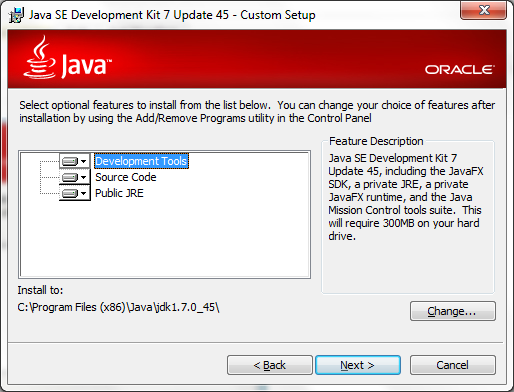
To continue the installation click the Next button shown in the screen above. This action will bring you to the feature’s selection screen in the installation wizard shown below.

Features Selection

Features Selection

In the feature’s selection screen above you will be able to choose which features to install. For the simplicity of this tutorial we will choose to install the entire features. We will also use the default installation path. In Windows operating system the default path is C:\Program Files (x86)\Java\jdk1.7.0_45. Click the Next button to continue to the next step.

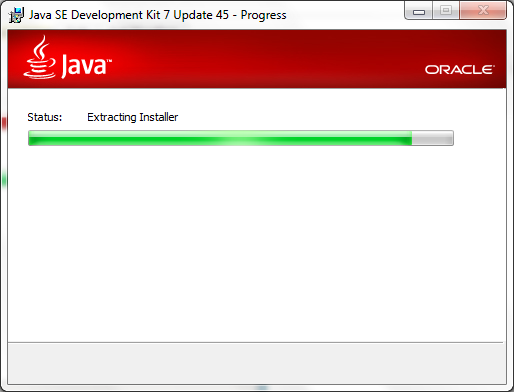
Installation Progress

Installation Progress

The screen above shows the progress status of the JDK installation. Depending on your computer speed this process may take a couple of minutes to finish. Wait for the next screen to show up.

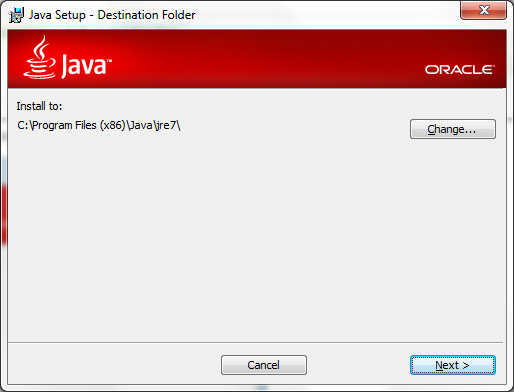
JRE Installation Screen

JRE Installation Screen

As stated above that the JRE is included within the JDK installer, the screen above show you the JRE installation wizard. We will use the default path as shown above C:\Program Files (x86)\Java\jre7. Click the Next button to continue to the next step.

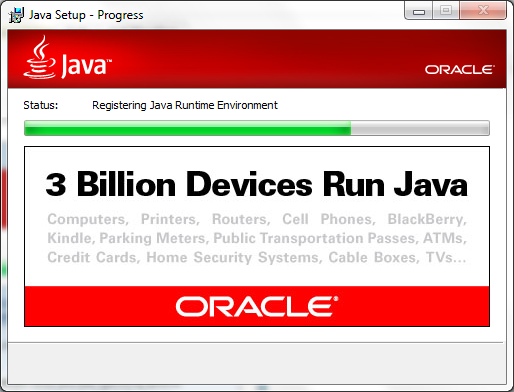
JRE Installation Progress

JRE Installation Progress

The screen above shows the status of the JRE installation. Depending on your computer speed this process may take some other minutes to complete. When the JRE installation complete you will see the next screen.

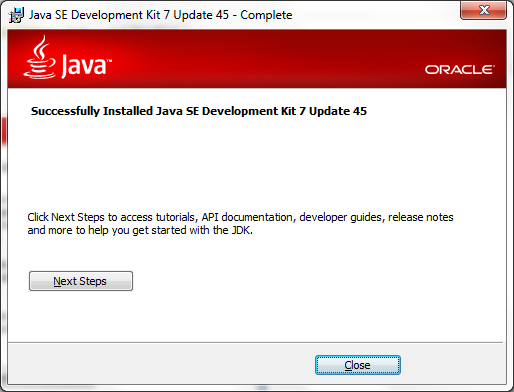
JDK Installation Completed

JDK Installation Completed

Seeing the screen above means that your JDK installation is completed. Click the Finish button to exit the installation Wizard.

Configuring The JDK

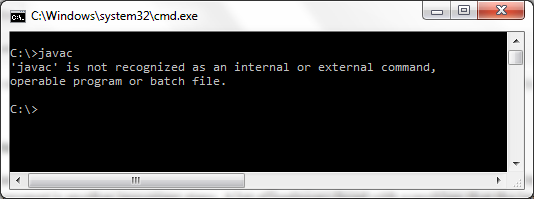
Now you have the JDK installed on your system. Configuring the JDK so that you can run the javac and java commands from the command prompt is another important steps. A lot of beginners faced with a problem that the javac command is not recognized because they did not configure the path correctly. To validate your installation type the javac command in the command prompt. At first, you will see the following screen as the command output.

javac command is not recognized

javac command is not recognized

To make the javac command run properly you need to update the PATH environment variable to include the Java binary installation path. The following steps will show you how to configure the PATH environment variable.

  • Open your Windows Explorer, you can use the Windows + E shortcut.
  • Right click on Computer icon and choose the Properties menu.
  • Click Advanced system setting from the Task list.
  • In the System Properties window choose the Advanced tab.
  • Click the Environment Variables button.
  • In the Environment Variables windows you will see two sections. User variables and System variables.
  • Find the Path variable and click the Edit button.
  • In the Edit User Variable screen, update the current variable value by adding the path to JDK bin folder, in our case the path will be C:\Program Files (x86)\Java\jdk1.7.0_45\bin;. You should add this information at the beginning at the beginning to make sure it will be picked first.
  • Press the OK button to update the User Variable.
  • Press the OK button to finish the Environment Variables setting.
  • Press the OK button on the System Properties window to close it.

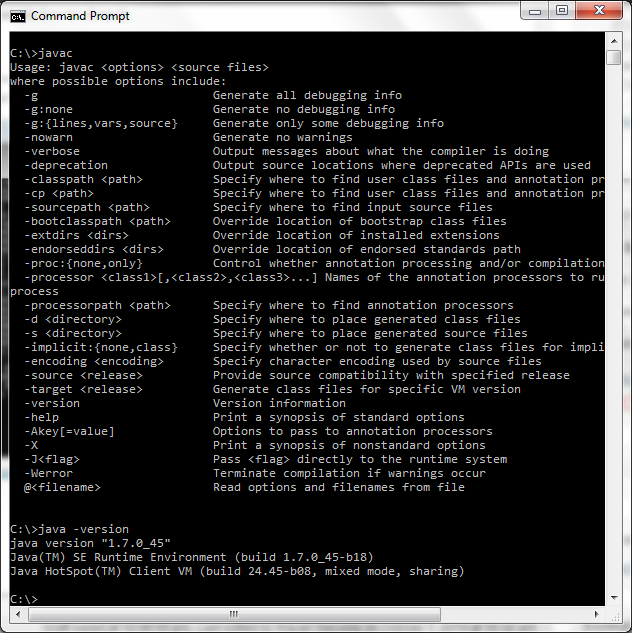
Now you can open a new command prompt window and type the javac command. You will see that the javac command is now run as expected. You can type javac -version to check the version of your JDK.

Java Command Recognized

Java Command Recognized

Creating The HelloWorld.java

Now you have the JDK installed and configured properly. Let’s now create our first Java program, the famous Hello World program. Let’s begin.

  • Open a command prompt window.
  • Create a directory C:\HelloWorld\src.
  • Go to the src directory and create another directory call program.
  • Go to the program directory.
  • Create the HelloWorld.java source file by typing notepad.exe HelloWorld.java.
  • The Notepad program will show a dialog saying that the HelloWorld.java file is not found.
  • Press the Yes button for creating the file.
  • Type the following code in the Notepad editor.
package program;

public class HelloWorld {
   public static void main(String[] args) {
       System.out.println("Hello World");
   }
}
  • Click the Save menu to save your program.
  • Click the Exit menu to exit from the Notepad program.
  • Type the dir command, and you will see that you have created a file called HelloWorld.java.

Compiling Java Source File

Up to this step you have created your first Java program. Before running the program you need to compile it. The compilation process compiles your Java source file into something called the Java bytecode. The bytecode is an intermediate language that makes the Java program portable across different platform.

To compile the program do the following step:

  • Go to the C:\HelloWorld\src\program directory.
  • Type javac HelloWorld.java to compile the source code.
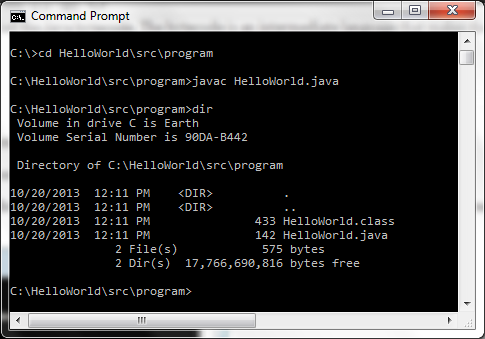
  • A successful compilation will produce a HelloWorld.class file. This class file is your binary HelloWorld program, and it is ready to be executed.
Compiling Hello World

Compiling Hello World

Running the Program

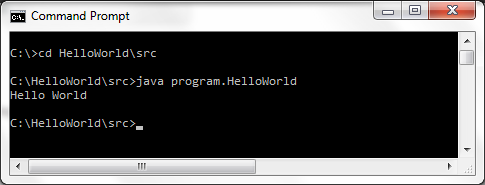
Now you are in the final step of the tutorial. Running the HelloWorld program. Here are the final step you need to run:

  • Go to the C:\HelloWorld\src directory.
  • Type java program.HelloWorld without the .class extension to run the program.
  • You will see that the Hello World string printed on the screen.
Running Hello World

Running Hello World

That’s all for now, see you on another tutorial.

How do I create a generic Map object?

In this example of Java Generics you will see how to create a generic Map object. Creating a generic Map means that you can define the type of the key and the type of the value of object stored in the Map. The declaration and the instantiation of a generic Map is only different to other type of collection such as List and Set is that we to define two types. One type for the key and the other type for the value.

The syntax for creating a generic Map is as follows:

Map<K, V> map = new Map<K, V>();

Where K is the type of map key and V is the type of the value stored in the map. If you want a map to hold a value of reference to String object and using an Integer as the key, you will write the declaration and instantiation like the snippet below.

Map <Integer, String> map = new HashMap<Integer, String>();

To make it simpler, you can use the diamond operator too.

Map <Integer, String> map = new HashMap<>();

When you want to add some elements to the map you can use the same put() method. But you don’t have to worry that you put a wrong type of object into the map. Because the Java compiler will check it to see if you are storing a correct type. Generic will catch the bug that should not happen at runtime because the code is already validated at compile time.

Map <Integer, String> map = new HashMap<>();
map.put(1, "A");
map.put(2, "B");
map.put(3, "C");

//map.put("4", new Date()); // Compile time error!  

String a = map.get(1);
String b = map.get(2);
String c = map.get(3);

The get() method will return a value from the map that correspond with the given key. Because the map know that it store values of string, it will return a string. So you don’t need to cast the return value from the map’s get() method. You might wonder why we can put keys like 1, 2, 3. Doesn’t it supposed to be type of Integer? If you remember the auto boxing feature then you’ll understand this. Behind the screen Java will convert the primitive int to Integer.

Now, after we know how to add elements and read it back from the map. Let iterate the contents of the map. A map will have two collections that you can iterate, the keys and the values. The code snippet below will demonstrate it for you. The first snippet show you how the iterate the map using the key collections while the second iterates the values of the map.

Iterate key collections.

Iterator keyIterator = map.keySet().iterator();
while (keyIterator.hasNext()) {
    Integer key = keyIterator.next();
    String value = map.get(key);
    System.out.println("key = " + key + "; value = " + value);
}

When iterating a map using the key collection you will get the key set of the map and check the hasNext() to see if it has next key. After that you can get the key using the next() method. To get the value you call the get() method and pass the key as the argument.

Iterates value collections.

Iterator valueIterator = map.values().iterator();
while(valueIterator.hasNext()) {
    System.out.println("value = " + valueIterator.next());
}

If you want to iterate the value and ignoring the keys you can get the value collections from the map. To validate if it still holds more entries you call the hasNext() method. To obtain the value simply call the next() method from the iterator.

Notice that when using generic you don’t need to do any casting when working with generic map. Everything is added to map and read from the map is according the type of the key and the value of the map. Beside using the Iterator you can also use the for-each loop to iterate the map. Here are the version of the code above written using the for-each loop.

for (Integer key : map.keySet()) {
    String value = map.get(key);
    System.out.println("key = " + key + "; value = " + value);
}

for (String s : map.values()) {
    System.out.println("value = " + s);
}

You can choose either way that match your coding style. Both method of iterating the map object will produce the same result.

How do I create a generic Set?

In another post of Java Generics you have seen how to create a generic collection using List in this example you will learn how to make a generic Set. Making a Set generic means that we want it to only hold objects of the defined type. We can declare and instantiate a generic Set like the following code.

Set<String> colors = new HashSet<>();

We use the angle brackets to define the type. We need also to define the type in the instantiation part, but using the diamond operator remove the duplicate and Java will infer the type itself. This declaration and instantiation will give you a Set object that holds a reference to String objects. If you tried to ask it to hold other type of object such as Date or Integer you will get a compiled time error.

Set<String> colors = new HashSet<>();
colors.add("Red");
colors.add("Green");
colors.add("Blue");

//colors.add(new Date()); // Compile time error!

The code for adding items to a set is look the same with the old way we code. But again, one thing you will get here for free is that the compiler will check to see if you add the correct type to the Set. If we remove the remark on the last line from the snippet above we will get a compiled time error. Because we are trying to store a Date into a Set of type String.

Now, let see how we can iterate the contents of the Set. First we’ll do it using the Iterator. And here is the code snippet.

Iterator iterator = colors.iterator();
while (iterator.hasNext()) {
    System.out.println(iterator.next());
}

When using a generic Set it will know that the iterator.next() will return a type of String so that you don’t have use the cast operator. Which of course will make you code looks cleaner and more readable. We can also using the for-each loop when iterating the Set as can be seen in the following example.

for (String color : colors) {
    System.out.println(color);
}